


Your email can be delivered and still never be seen. It lands in spam, and as far as your sending stats are concerned, everything worked.
That gap is what deliverability means. If your mail is already landing in spam and you need to fix it today, start with why your emails go to spam instead.
This guide covers how to measure it and what a healthy rate looks like. It also covers what Gmail, Yahoo, and Outlook now require before they’ll accept your mail at volume.
- What Is Email Deliverability?
- How to Calculate Your Deliverability Rate
- What Counts as a Good Deliverability Rate?
- What Gmail, Yahoo, and Outlook Now Require
- How to Improve Email Deliverability
- Sender Reputation: Domain vs IP
- Shared or Dedicated IP?
- Why Your Sending Provider Might Be the Bottleneck
- Email Deliverability Tools
- How to Test Your Deliverability
- Frequently Asked Questions
What Is Email Deliverability?
Email deliverability is the share of your emails that reach the inbox. Not the mail server, the inbox.
It’s worth separating two numbers that often get confused:
- Delivery rate is how many emails the receiving server accepted. A bounce lowers it.
- Deliverability, or inbox placement, is how many landed somewhere the recipient will actually look. Spam folder placement lowers it.
You can have a 98% delivery rate and a much worse inbox placement rate. Most sending dashboards only show you the first number.
How to Calculate Your Deliverability Rate
Delivery rate is the easy one:
Delivery rate = (emails delivered ÷ emails sent) × 100
Say you send 10,000 emails and 200 bounce. That leaves 9,800 delivered, so your delivery rate is 98%.
Now suppose 700 of those 9,800 land in spam. Only 9,100 reached an inbox:
Inbox placement = (9,100 ÷ 10,000) × 100 = 91%
Same send, two very different pictures. The 7-point gap between 98% and 91% is the part that costs you money. Nothing in a standard sending report will show it. You need seed-list testing or Postmaster data to see it at all.

What Counts as a Good Deliverability Rate?
Transactional and marketing mail get judged differently. The recipient is waiting for one and tolerating the other.
| Metric | Healthy | Investigate |
|---|---|---|
| Delivery rate, transactional | 95% or higher | Below 95% |
| Delivery rate, marketing | 85% to 94% | Below 85% |
| Bounce rate | Under 2% | Over 3% |
| Spam complaint rate | Under 0.1% | Approaching 0.3% |
| Open rate | Over 20% | Under 10% |
| Time to deliver | Seconds | Over 20 seconds |
Bounce, complaint, and engagement thresholds come from Postmark’s published benchmarks. Treat the open rate row with some suspicion, since image pre-loading inflates it.
What Gmail, Yahoo, and Outlook Now Require
Three of the largest mailbox providers have published hard requirements for anyone sending at volume. Miss them and your mail gets filtered regardless of how good your content is.
| Google and Yahoo | Microsoft Outlook | |
|---|---|---|
| In force since | February 2024 | May 5, 2025 |
| Applies to | 5,000+ messages a day to Gmail addresses | 5,000+ a day to outlook.com, hotmail.com, live.com |
| SPF | Required | Must pass |
| DKIM | Required | Must pass |
| DMARC | Required | Required, at minimum p=none, aligned to SPF or DKIM |
| One-click unsubscribe | Required on marketing mail | Not specified |
| Spam rate | Below 0.3% in Postmaster Tools | Not specified |
A few things worth knowing about that table.
The 5,000 threshold is per day, per provider, not per month. It’s easier to cross than people expect.
0.3% is three complaints per thousand messages. Google recommends staying under 0.10% and says you should never reach 0.30%.
One-click unsubscribe applies to marketing mail, meaning messages people subscribed to. It isn’t required on transactional mail, and you shouldn’t add it there. Letting someone unsubscribe from password reset emails locks them out of their account.
If you’re warming up a new domain, authentication has to pass before your first send. A standard warmup schedule crosses 5,000 sends a day somewhere around week three or four, which is exactly when both rulesets start applying to you.

How to Improve Email Deliverability
Eight changes, roughly in the order they pay off.
1. Authenticate Your Domain
Publish SPF, DKIM, and DMARC records for your sending domain. This is now a requirement rather than a best practice. It’s also the single change that fixes the most delivery problems.
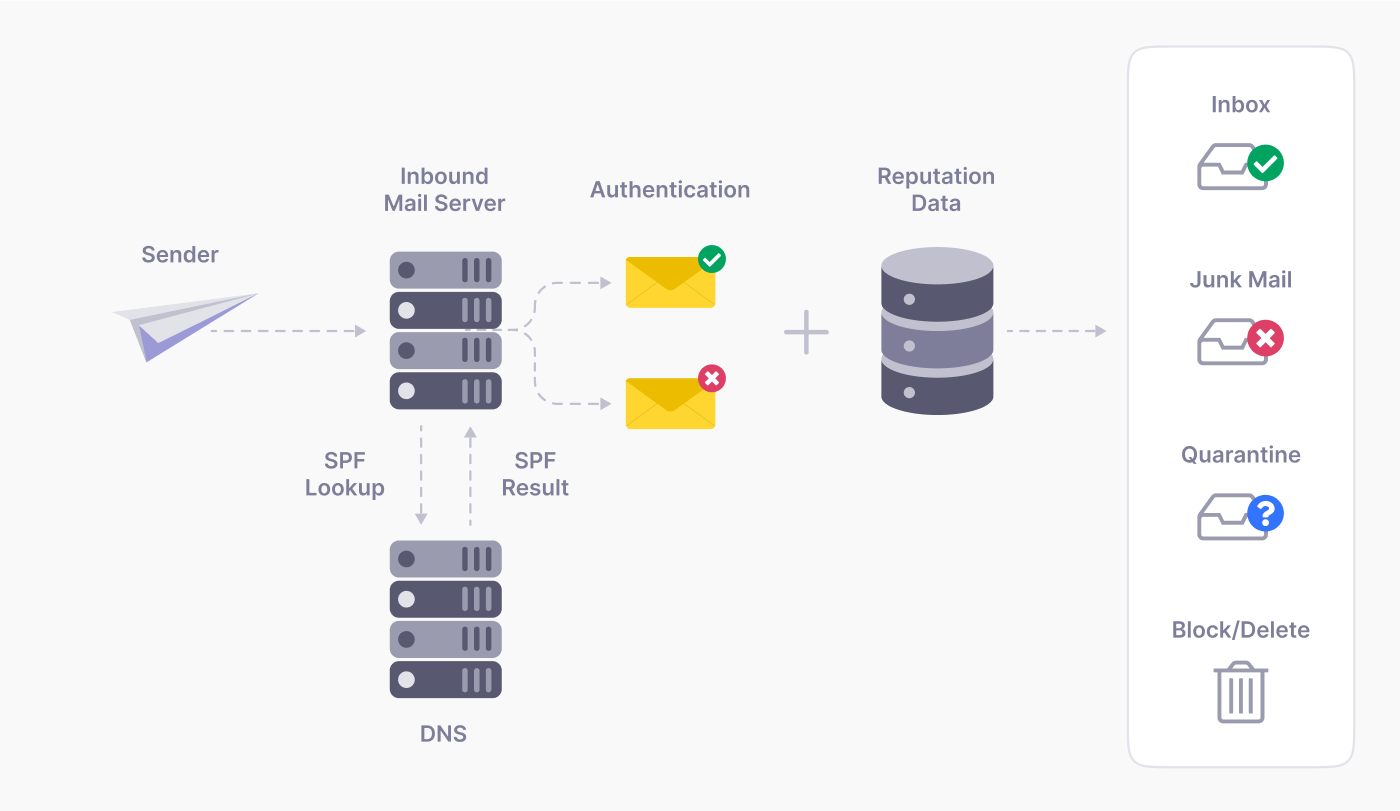
Start DMARC at p=none so you can read reports without blocking your own mail. Tighten to quarantine or reject once the reports look clean.
2. Keep Your Complaint Rate Down
Complaints are the strongest negative signal you can send a mailbox provider. Watch the spam complaint rate in Postmaster Tools and treat 0.1% as your ceiling, not 0.3%.
If a segment complains more than the rest, stop mailing it. Don’t try to win it back.
3. Clean Your List
Remove hard bounces immediately. A hard bounce means the address doesn’t exist. Mailing it again tells the provider you don’t check.
Suppress addresses that haven’t opened or clicked in six months. A smaller list that engages beats a bigger one that doesn’t.
4. Warm Up New Domains and IPs
A brand new sending domain has no reputation. Sending 50,000 emails on day one reads as a spam pattern.
Ramp volume gradually over a few weeks, starting with your most engaged recipients.
5. Separate Transactional From Marketing Mail
Send transactional and marketing mail from different subdomains. A campaign that generates complaints shouldn’t damage the reputation your password resets depend on. Our guide to setting up an email subdomain walks through it.
6. Only Mail People Who Asked
Use confirmed opt-in where you can. Bought lists and scraped addresses are the fastest way to hit a spam trap. One hit can undo months of good sending.
7. Watch Engagement, Not Just Delivery
Mailbox providers weigh how people react to your mail. Clicks, replies, and moves out of spam all help. Deletions without opening hurt.
Send from a real, monitored address rather than noreply@. Replies are a positive signal.
8. Monitor It Continuously
Set up Google Postmaster Tools and Microsoft SNDS. Both are free. Both show you data your sending platform can’t, including your domain reputation and your real spam rate.
Sender Reputation: Domain vs IP
Mailbox providers score you twice, and the two scores behave differently.

Domain reputation follows your sending domain. It’s built from how people react to mail from that domain over months. It travels with you. Change providers and your domain reputation comes along, good or bad.
IP reputation belongs to the address your mail physically leaves from. On a dedicated IP that’s yours alone. On a shared pool it’s collective.
The practical consequence catches people out. If your deliverability is poor because of your own list quality, moving providers fixes very little. The domain reputation follows you. If it’s poor because you’re on a bad shared pool, moving helps immediately.
Diagnose which one you have before you switch anything. Postmaster Tools reports domain reputation directly, which makes this a quick check rather than a guess.
Shared or Dedicated IP?
A shared IP means your mail leaves alongside other senders’. A dedicated IP is yours.

Shared is the right default for most senders. The pool already has an established reputation. Your own volume is usually too low and too uneven to build one from scratch.
A dedicated IP only helps when your volume is high and steady. An idle dedicated IP is worse than a shared one, because reputation decays without consistent sending.
Published thresholds vary wildly, from roughly 100,000 messages a month to 25,000 a day. It depends who you ask. Treat them as rough. The principle is more useful than the number. Take a dedicated IP when you send enough, often enough, to keep it warm.
Why Your Sending Provider Might Be the Bottleneck
You can do all eight of those things and still have problems, because part of your reputation isn’t yours. If you send through shared infrastructure, you inherit the behavior of everyone else on it.
Five things worth checking about whoever sends your mail:
- Whether transactional and marketing traffic are mixed. Some budget providers push both down the same pipe, which is the problem described above at an infrastructure level.
- Authentication support. If setting up DKIM for your domain isn’t straightforward, you can’t meet the requirements above.
- Log detail. Without per-message delivery logs you can’t tell a bounce from a spam placement, so you can’t diagnose anything.
- Volume headroom. Providers that throttle or queue at your peak turn a password reset into a support ticket.
Shared web hosting and a general-purpose mailbox are the two most common culprits. We’ve written separately on whether you need a transactional email provider. Neither was built to send application email at volume.
Email Deliverability Tools
You can cover most of what you need without paying for anything.
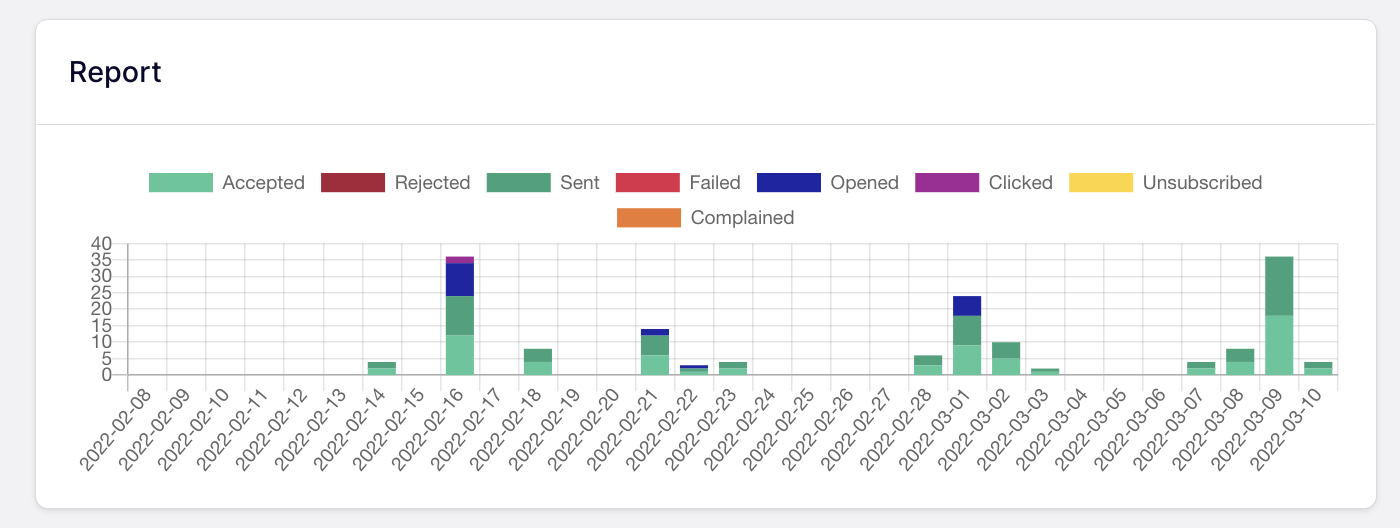
- Google Postmaster Tools. Free. Domain reputation, spam rate, and authentication results as Gmail sees them. The single most useful source of truth if you send to Gmail.
- Microsoft SNDS. Free. The equivalent data for Outlook, Hotmail, and Live addresses.
- DNS and authentication checkers. Free. Confirm your SPF, DKIM, and DMARC records resolve and pass.
- Seed-list testers. Paid, mostly. Send to a spread of real accounts and report where each message landed. The only practical way to measure inbox placement.
- Your provider’s delivery logs. Per-message accept, bounce, defer, and open data. If your provider doesn’t offer this, that’s a finding in itself.
Start with the two free tools. Most paid platforms measure the same underlying signals and present them more conveniently.
How to Test Your Deliverability
Three checks, cheapest first.
- Verify your DNS records. Confirm SPF, DKIM, and DMARC all resolve and pass for your sending domain.
- Send a seed test. Mail a set of addresses across Gmail, Outlook, and Yahoo and record where each one landed. This is the only way to see inbox placement directly.
- Read your Postmaster data. Google Postmaster Tools shows domain reputation and spam rate over time, which catches a slow decline before it becomes an outage.
Run all three after any change to your sending setup, not just when something breaks.
Frequently Asked Questions
What is a good email deliverability rate?
For transactional email, 95% or higher. For marketing email, 85% to 94% is normal and above 94% is strong. Below 85% points at a list quality or authentication problem.
What’s the difference between email delivery and email deliverability?
Delivery measures whether the receiving server accepted your message. Deliverability measures whether it reached the inbox instead of the spam folder. You can have excellent delivery and poor deliverability at the same time.
Do I need SPF, DKIM, and DMARC?
Yes, if you send any real volume. Google and Yahoo have required all three since February 2024. It applies to senders of 5,000 or more messages a day. Microsoft added the same requirement for Outlook addresses in May 2025.
What spam complaint rate is too high?
Google says to keep the rate in Postmaster Tools below 0.3%. It recommends staying under 0.10% and warns you should never reach 0.30%. For context, 0.3% is three complaints per thousand messages.
How long should email delivery take?
Seconds. Postmark’s benchmark treats anything over 20 seconds as slow. For password resets and login codes, a delay of minutes is effectively a failure.
That’s it! Now you know how to improve email deliverability.
Next, do you want to see exactly where your setup is failing? Check out our guide to testing any SMTP server for more information.
Ready to send your emails in the fastest and most reliable way? Get started today with the most user-friendly and powerful SMTP email delivery service. SendLayer Business includes 5,000 emails a month with premium support.
