


Want visitors to reach you through a React contact form, without leaving your app? It works on a portfolio, a landing page, or a full web app.
React can build the form, but it can’t send email from the browser by itself. You need a small backend, or a third-party form service, to deliver the message.
In this guide, I’ll walk you through how to build a React contact form that emails you.
- Step 1: Setting Up Your React Project
- Step 2: Building the Contact Form Component
- Step 3: Handling Form State and Validation
- Step 4: Creating the Backend Server
- Step 5: Connecting the Backend Server to the Contact Form
- Step 6: Testing Your Contact Form
- Sending React Form Emails Without a Backend
- Troubleshooting Common Errors
- Frequently Asked Questions
How to Create a Contact Form in React.js
To create a React contact form, build a component that keeps its fields in useState. Validate the input, then POST it to a small backend.
The backend calls an email API like SendLayer, which delivers the notification to your inbox.
The backend matters because it keeps your API key off the browser. Anyone can read code that runs in the browser.

Prerequisites
You’ll need a recent Node.js, some React basics, a code editor, and an email service:
- Node.js 20.19+ or 22.12+. Vite 8 needs one of these versions. Download Node.js here.
- Basic knowledge of JavaScript and React.
- A code editor like Visual Studio Code.
- An email service provider. I’ll use SendLayer for this tutorial. As of October 2026, you can get started with 200 free emails.
Send your form’s notifications through SendLayer. Your first 200 emails are free.
After you create your SendLayer account, authorize your sending domain. SendLayer only sends from domains you’ve verified. It also helps your messages land in the inbox instead of spam.
Step 1: Setting Up Your React Project
This step creates a new React project with Vite. Already have one? Skip to Step 2.
Open your terminal and run these commands:
npm create vite@latest contact-form-app -- --template react
cd contact-form-app
npm install
npm run dev
Your app should now be running at http://localhost:5173. As of October 2026, vite@latest installs Vite 8.

Step 2: Building the Contact Form Component
Let’s start with a simple, accessible form. Create a new file called ContactForm.jsx in the src directory, then paste this code:
import { useState } from 'react';
import './ContactForm.css';

function ContactForm() {
  const [formData, setFormData] = useState({
    name: '',
    email: '',
    subject: '',
    message: ''
  });

  const handleChange = (e) => {
    const { name, value } = e.target;
    setFormData((prev) => ({ ...prev, [name]: value }));
  };

  const handleSubmit = (e) => {
    e.preventDefault();
    // We'll send this to the backend later
    console.log('Form submitted:', formData);
    setFormData({ name: '', email: '', subject: '', message: '' });
  };

  return (
    <div className="contact-form-container">
      <h2>Contact Us</h2>
      <form onSubmit={handleSubmit} className="contact-form">
        <div className="form-group">
          <label htmlFor="name">Name *</label>
          <input type="text" id="name" name="name" value={formData.name}
            onChange={handleChange} required placeholder="Your full name" />
        </div>

        <div className="form-group">
          <label htmlFor="email">Email *</label>
          <input type="email" id="email" name="email" value={formData.email}
            onChange={handleChange} required placeholder="[email protected]" />
        </div>

        <div className="form-group">
          <label htmlFor="subject">Subject *</label>
          <input type="text" id="subject" name="subject" value={formData.subject}
            onChange={handleChange} required placeholder="What's this about?" />
        </div>

        <div className="form-group">
          <label htmlFor="message">Message *</label>
          <textarea id="message" name="message" rows="6" value={formData.message}
            onChange={handleChange} required placeholder="Tell us more about your inquiry..." />
        </div>

        <button type="submit" className="submit-btn">Send Message</button>
      </form>
    </div>
  );
}

export default ContactForm;
Each input is a controlled field. handleChange copies whatever the user types into formData.
Next, create ContactForm.css in the same folder for some basic styling:
.contact-form-container {
  max-width: 600px;
  margin: 2rem auto;
  padding: 2rem;
  background: #f9f9f9;
  border-radius: 8px;
  box-shadow: 0 2px 10px rgba(0, 0, 0, 0.1);
}

.contact-form-container h2 {
  text-align: center;
  color: #333;
  margin-bottom: 2rem;
}

.contact-form {
  display: flex;
  flex-direction: column;
  gap: 1rem;
  width: 100%;
}

.form-group label {
  display: block;
  text-align: left;
  margin-bottom: 0.5rem;
  color: #555;
  font-weight: 500;
}

.form-group input,
.form-group textarea {
  width: 100%;
  box-sizing: border-box;
  padding: 0.75rem;
  border: 1px solid #ddd;
  border-radius: 4px;
  font-size: 1rem;
}

.form-group input:focus,
.form-group textarea:focus {
  outline: none;
  border-color: #007bff;
  box-shadow: 0 0 0 2px rgba(0, 123, 255, 0.25);
}

.submit-btn {
  width: 100%;
  padding: 1rem;
  background: #007bff;
  color: white;
  border: none;
  border-radius: 4px;
  font-size: 1.1rem;
  cursor: pointer;
}

.submit-btn:hover { background: #0056b3; }

.submit-btn:disabled {
  background: #6c757d;
  cursor: not-allowed;
}
Now import the form into App.jsx:
import ContactForm from './ContactForm';
import './App.css';

function App() {
  return (
    <div className="App">
      <h1>My Website</h1>
      <ContactForm />
    </div>
  );
}

export default App;
Your dev server reloads on its own. Open http://localhost:5173 and you should see the form.

For now, submitting the form just logs the data to the browser console.

Step 3: Handling Form State and Validation
Next, let’s add validation and a loading state. Replace everything in ContactForm.jsx with this version:
import { useState } from 'react';
import './ContactForm.css';

const emptyForm = { name: '', email: '', subject: '', message: '' };

function ContactForm() {
  const [formData, setFormData] = useState(emptyForm);
  const [errors, setErrors] = useState({});
  const [isSubmitting, setIsSubmitting] = useState(false);
  const [submitStatus, setSubmitStatus] = useState('');

  const validateEmail = (email) => /^[^\s@]+@[^\s@]+\.[^\s@]+$/.test(email);

  const validateForm = () => {
    const newErrors = {};
    if (formData.name.trim().length < 2) newErrors.name = 'Name must be at least 2 characters';
    if (!validateEmail(formData.email)) newErrors.email = 'Please enter a valid email address';
    if (formData.subject.trim().length < 5) newErrors.subject = 'Subject must be at least 5 characters';
    if (formData.message.trim().length < 10) newErrors.message = 'Message must be at least 10 characters';
    return newErrors;
  };

  const handleChange = (e) => {
    const { name, value } = e.target;
    setFormData((prev) => ({ ...prev, [name]: value }));
    // Clear a field's error as the user types
    if (errors[name]) setErrors((prev) => ({ ...prev, [name]: '' }));
  };

  const handleSubmit = async (e) => {
    e.preventDefault();
    const formErrors = validateForm();
    if (Object.keys(formErrors).length > 0) {
      setErrors(formErrors);
      return;
    }

    setIsSubmitting(true);
    setSubmitStatus('');
    try {
      // Simulated request. We'll call the real backend in Step 5
      await new Promise((resolve) => setTimeout(resolve, 1000));
      setSubmitStatus('success');
      setFormData(emptyForm);
    } catch (error) {
      setSubmitStatus('error');
    } finally {
      setIsSubmitting(false);
    }
  };

  const renderField = (id, label, type = 'text', placeholder = '') => (
    <div className="form-group">
      <label htmlFor={id}>{label} *</label>
      {type === 'textarea' ? (
        <textarea id={id} name={id} rows="6" value={formData[id]} onChange={handleChange}
          placeholder={placeholder} className={errors[id] ? 'error' : ''} disabled={isSubmitting} />
      ) : (
        <input id={id} name={id} type={type} value={formData[id]} onChange={handleChange}
          placeholder={placeholder} className={errors[id] ? 'error' : ''} disabled={isSubmitting} />
      )}
      {errors[id] && <span className="error-text">{errors[id]}</span>}
    </div>
  );

  return (
    <div className="contact-form-container">
      <h2>Contact Us</h2>
      {submitStatus === 'success' && (
        <div className="status-message success">Thank you! Your message has been sent.</div>
      )}
      {submitStatus === 'error' && (
        <div className="status-message error">Sorry, something went wrong. Please try again.</div>
      )}
      <form onSubmit={handleSubmit} className="contact-form" noValidate>
        {renderField('name', 'Name', 'text', 'Your full name')}
        {renderField('email', 'Email', 'email', '[email protected]')}
        {renderField('subject', 'Subject', 'text', "What's this about?")}
        {renderField('message', 'Message', 'textarea', 'Tell us more about your inquiry...')}
        <button type="submit" className="submit-btn" disabled={isSubmitting}>
          {isSubmitting ? 'Sending...' : 'Send Message'}
        </button>
      </form>
    </div>
  );
}

export default ContactForm;
Here’s what changed:
validateForm()checks each field and returns any errors.validateEmail()uses a simple regular expression to check the email format.noValidateturns off the browser’s own popups, so only your error messages show.
Now add these styles to the end of ContactForm.css:
.status-message {
  padding: 1rem;
  border-radius: 4px;
  margin-bottom: 1.5rem;
  font-weight: 500;
}

.status-message.success {
  background: #d4edda;
  color: #155724;
  border: 1px solid #c3e6cb;
}

.status-message.error {
  background: #f8d7da;
  color: #721c24;
  border: 1px solid #f5c6cb;
}

.form-group input.error,
.form-group textarea.error {
  border-color: #dc3545;
  box-shadow: 0 0 0 2px rgba(220, 53, 69, 0.25);
}

.error-text {
  display: block;
  color: #dc3545;
  font-size: 0.875rem;
  margin-top: 0.25rem;
}
Try submitting the form with a bad email or a short message. You’ll see an error under each field that needs fixing.

Step 4: Creating the Backend Server
React runs in the browser, so it can’t send email safely on its own. Your API key would be visible to anyone who opens the page source.
The fix is a small Express server. It receives the form data and sends the email for you.
Create a backend folder next to your React project. Then set up a Node.js project inside it:
mkdir backend && cd backend
npm init -y
npm install express cors dotenv validator
npm install -D nodemon
We’ll write server.js in a moment. First, set up the scripts and your settings.
Add these scripts to your package.json:
{
  "scripts": {
    "start": "node server.js",
    "dev": "nodemon server.js"
  }
}
After that, create a .env file in the backend folder:
PORT=3001

# SendLayer API configuration
SENDLAYER_API_KEY=your-sendlayer-api-key
FROM_EMAIL=noreply@yourdomain.com
TO_EMAIL=you@yourdomain.com
FROM_EMAIL must use the domain you authorized in SendLayer. TO_EMAIL is the inbox that receives new messages.
To get your API key, log in to your SendLayer account. Click Settings, then select the API Keys tab.
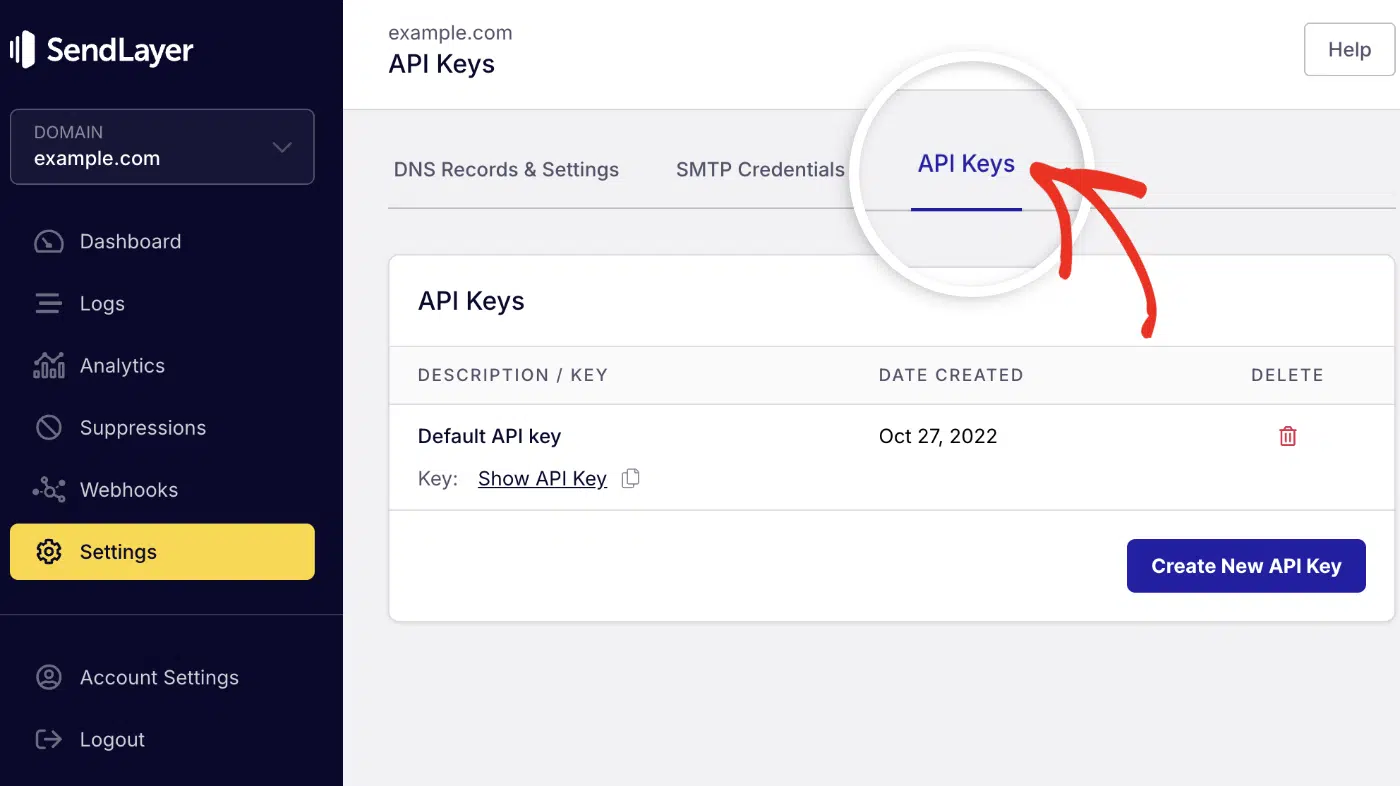
Click the copy icon next to Default API key. Then paste it into .env as the SENDLAYER_API_KEY value.

Need a separate key for this project? Click Create New API Key instead.
Send Email with SendLayer API in React
Now let’s make the server send real emails. Our guide to sending emails in React with SMTP and Nodemailer covers the SMTP route. This one uses an email API, which gives you delivery tracking without managing SMTP connections.
Install the SendLayer SDK in your backend folder:
npm install sendlayer
Important: Use sendlayer version 1.1.0 or later. Earlier versions dropped the plain-text body whenever you also sent HTML.
Then create server.js in the backend folder and paste this code:
const express = require('express');
const cors = require('cors');
const dotenv = require('dotenv');
const validator = require('validator');
const { SendLayer } = require('sendlayer');

dotenv.config();

const app = express();
const port = process.env.PORT || 3001;

// Initialize SendLayer with your API key
const sendlayer = new SendLayer(process.env.SENDLAYER_API_KEY);

app.use(cors());
app.use(express.json());

app.get('/health', (req, res) => {
  res.json({ status: 'Server is running' });
});

app.post('/api/contact', async (req, res) => {
  const { name, email, subject, message } = req.body;

  // Validate required fields
  if (!name || !email || !subject || !message) {
    return res.status(400).json({ error: 'All fields are required' });
  }

  if (!validator.isEmail(email)) {
    return res.status(400).json({ error: 'Please enter a valid email address' });
  }

  // Escape user input before placing it inside HTML
  const safe = {
    name: validator.escape(name.trim()),
    email: validator.escape(email.trim()),
    subject: validator.escape(subject.trim()),
    message: validator.escape(message.trim()).replace(/\n/g, '<br>'),
  };

  try {
    // 1. Notification email to the site owner
    await sendlayer.Emails.send({
      from: { email: process.env.FROM_EMAIL, name: 'Your Website' },
      to: [{ email: process.env.TO_EMAIL, name: 'Website Owner' }],
      replyTo: email,
      subject: `New Contact Form: ${subject.trim().slice(0, 100)}`,
      html: `
        <div style="font-family: Arial, sans-serif; max-width: 600px;">
          <h2 style="border-bottom: 2px solid #007bff;">New Contact Form Submission</h2>
          <p><strong>Name:</strong> ${safe.name}</p>
          <p><strong>Email:</strong> ${safe.email}</p>
          <p><strong>Subject:</strong> ${safe.subject}</p>
          <p><strong>Message:</strong><br>${safe.message}</p>
          <p style="color: #6c757d;"><em>Hit Reply to answer ${safe.name} directly.</em></p>
        </div>
      `,
      text: `New contact form submission\n\nName: ${name}\nEmail: ${email}\nSubject: ${subject}\n\n${message}`,
      tags: ['contact-form'],
    });

    // 2. Short confirmation to the visitor (no user content echoed back)
    await sendlayer.Emails.send({
      from: { email: process.env.FROM_EMAIL, name: 'Your Website' },
      to: email,
      subject: 'We received your message',
      html: `
        <div style="font-family: Arial, sans-serif; max-width: 600px;">
          <p>Hi there,</p>
          <p>Thanks for getting in touch. We've received your message and will reply within 1 business day.</p>
          <p>Best regards,<br>The Your Website Team</p>
        </div>
      `,
      text: "Hi there,\n\nThanks for getting in touch. We've received your message and will reply within 1 business day.\n\nBest regards,\nThe Your Website Team",
      tags: ['auto-reply', 'contact-form'],
    });

    res.json({ success: true, message: 'Your message has been sent successfully!' });
  } catch (error) {
    // SendLayer errors include the HTTP status and the API's own message
    console.error('SendLayer error:', error.statusCode, error.message);
    res.status(500).json({ error: 'Failed to send message. Please try again later.' });
  }
});

app.listen(port, () => {
  console.log(`Server running on port ${port}`);
});
Code breakdown
First, we create a SendLayer client with the API key from .env.
The /api/contact route expects 4 fields: name, email, subject, and message. It rejects the request if any are missing or the email looks invalid.
Next, validator.escape() converts characters like < and > into safe HTML entities. Without it, someone could inject HTML or links into the email you receive.
The route then calls sendlayer.Emails.send() twice:
- Notification: goes to
TO_EMAIL. The code setsreplyToto the visitor, so you can just hit Reply. - Confirmation: a short note to the visitor. It doesn’t repeat anything they typed.
Each email has an HTML body and a plain-text fallback. Email clients that can’t show HTML use the text version.
If SendLayer rejects a request, the SDK throws an error. It carries statusCode and the API’s own message, so you can log what went wrong.
Warning: Spammers can abuse any form that emails the address someone types. They enter a victim’s address and put their spam in the message.
That’s why the confirmation above echoes nothing back. Add the honeypot and rate limit from Best Practices before you go live.
To learn more, see the SendLayer docs on sending emails with the API.
Step 5: Connecting the Backend Server to the Contact Form
Now let’s connect the form to your backend. In your React project folder, install axios:
npm install axios
You’ll make 4 changes to ContactForm.jsx. First, add these lines at the top of the file, below the existing imports:
import axios from 'axios';

const API_BASE_URL = import.meta.env.VITE_API_URL || 'http://localhost:3001';
API_BASE_URL falls back to your local server. In production, set VITE_API_URL to your deployed backend’s address.
Second, replace the handleSubmit function with this one:
const handleSubmit = async (e) => {
  e.preventDefault();
  const formErrors = validateForm();
  if (Object.keys(formErrors).length > 0) {
    setErrors(formErrors);
    return;
  }

  setIsSubmitting(true);
  setSubmitStatus('');
  try {
    const response = await axios.post(`${API_BASE_URL}/api/contact`, formData, {
      timeout: 10000, // 10 seconds
    });
    if (response.data.success) {
      setSubmitStatus('success');
      setFormData(emptyForm);
    }
  } catch (error) {
    console.error('Error submitting form:', error);
    if (error.code === 'ECONNABORTED') setSubmitStatus('timeout');
    else if (error.response?.status === 429) setSubmitStatus('ratelimit');
    else setSubmitStatus('error');
  } finally {
    setIsSubmitting(false);
  }
};
Third, add a message for each status. Put this object above function ContactForm():
const statusMessages = {
  success: { type: 'success', text: "Thank you! Your message has been sent. We'll get back to you soon!" },
  timeout: { type: 'error', text: 'Request timed out. Please check your connection and try again.' },
  ratelimit: { type: 'error', text: 'Too many attempts. Please wait a few minutes and try again.' },
  error: { type: 'error', text: 'Sorry, there was an error sending your message. Please try again later.' },
};
Then swap the two submitStatus blocks in the JSX for this single one:
{submitStatus && (
  <div className={`status-message ${statusMessages[submitStatus].type}`}>
    {statusMessages[submitStatus].text}
  </div>
)}
Finally, put the name and email fields side by side. Wrap their two renderField() calls in a form-row div:
<div className="form-row">
  {renderField('name', 'Name', 'text', 'Your full name')}
  {renderField('email', 'Email', 'email', 'your.email@example.com')}
</div>
And add the grid layout to ContactForm.css:
.form-row {
  display: grid;
  grid-template-columns: 1fr 1fr;
  gap: 1rem;
}

@media (max-width: 768px) {
  .form-row { grid-template-columns: 1fr; }
}
Step 6: Testing Your Contact Form
Let’s test the whole flow. You’ll need 2 terminal windows.
In the first one, start the backend from the backend folder:
npm run dev
You may see a line like injected env (4) from .env. That’s dotenv confirming it loaded your settings.
In the second window, start React from your project folder:
npm run dev
Open http://localhost:5173, fill in every field, and click Send Message.

If you’ve set everything up correctly, you’ll see a success notification.

Now check the inbox you set as TO_EMAIL. The notification should be waiting there.

Sending React Form Emails Without a Backend
Don’t want to run a server? A hosted form service can send the email for you. EmailJS, Formspree, and Netlify Forms are popular options.
With EmailJS, for example, you design a template in their dashboard. Then you trigger it from React:
import emailjs from '@emailjs/browser';

emailjs.send('YOUR_SERVICE_ID', 'YOUR_TEMPLATE_ID', formData, {
  publicKey: 'YOUR_PUBLIC_KEY',
});
That’s quick to set up, but it comes with trade-offs:
- Your key is public. EmailJS says that’s okay, because the key can only send your saved templates. Anyone can still trigger those templates, though.
- You can’t add your own server checks. EmailJS can verify a CAPTCHA and allow only your domain. But there’s no place for your own honeypot or input validation.
- Less control. Sending limits, logs, and the sending domain depend on the service’s plan.
My rule of thumb: a hosted service is fine for a portfolio. Use your own backend when the form matters to your business. The same goes if you want to send from your own domain.

Troubleshooting Common Errors
When you build a contact form with email notifications, you’ll likely hit a few errors. Here are the ones you’re likely to see, and how to fix each.
net::ERR_CONNECTION_REFUSED
The browser couldn’t reach your backend. Check that the backend server is running. Then make sure API_BASE_URL matches its address and port.
Blocked by CORS Policy
The backend rejected your frontend’s origin.
Did you restrict CORS in Best Practices? Then set CLIENT_ORIGIN to your React app’s exact address. Include the port, like http://localhost:5173.
SendLayer Returns 401 Invalid API Key
The SDK throws a SendLayerAuthenticationError when the API key is wrong. Copy the key again from Settings » API Keys and restart the backend. dotenv only reads .env when the server starts.
The Email Is Rejected Because of the Sender
SendLayer only sends from domains you’ve authorized. Make sure FROM_EMAIL uses that exact domain. Check the domain status in your SendLayer dashboard.
ERR_ERL_UNEXPECTED_X_FORWARDED_FOR After Deploying
You may see this from express-rate-limit once your server runs behind a proxy. Hosts like Render, Railway, and Heroku all use one.
Add app.set('trust proxy', 1) before your routes, so the limiter sees the visitor’s real IP. The express-rate-limit docs explain the right value for your setup.
Notifications Land in Spam
Check that SendLayer shows your domain’s SPF and DKIM records as verified. Avoid sending from a free address like Gmail, because you can’t authenticate it for your domain.
Best Practices and Security
1. Use Environment Variables
Keep credentials out of your code and out of Git. Always read them from environment variables:
// Good
const apiKey = process.env.SENDLAYER_API_KEY;

// Bad - never do this
const apiKey = 'your-actual-api-key-here';
Add .env to your .gitignore file, too.
Note: Vite puts any variable that starts with VITE_ into your public JavaScript bundle. Never store your SendLayer key in a VITE_ variable.
Keep it on the backend only. See the Vite docs for details.
2. Sanitize Form Input
Treat everything a visitor types as untrusted. The server.js above already does two things:
validator.isEmail()rejects badly formed addresses.validator.escape()turns HTML characters into safe entities before they go into the email.
Keep both checks on the server, even though the React form validates too. Anyone can skip your frontend and send requests straight to the API.
3. Implement Rate Limiting
Rate limiting caps how often one IP address can submit your form. It stops bots from flooding your inbox and burning through your sending quota.
SendLayer has its own API limits. When you hit one, the SDK throws a SendLayerRateLimitError. Your own limiter stops abuse before it gets that far.
Install express-rate-limit in your backend folder:
npm install express-rate-limit
Then add the limiter to server.js:
const { rateLimit } = require('express-rate-limit');

const contactFormLimiter = rateLimit({
  windowMs: 15 * 60 * 1000, // 15 minutes
  limit: 5, // 5 submissions per IP in each window
  standardHeaders: 'draft-8',
  legacyHeaders: false,
  message: { error: 'Too many submissions. Please try again later.' },
});
Next, attach it to the contact route only:
app.post('/api/contact', contactFormLimiter, async (req, res) => {
Submit the form 6 times in a row to test it. The sixth request returns a 429 status. The form then shows the “Too many attempts” message.
4. Add a Honeypot Field
A honeypot is a hidden field that people never see, but bots fill in. If it has a value, you can quietly drop the submission.
First, add website to emptyForm in ContactForm.jsx:
const emptyForm = { name: '', email: '', subject: '', message: '', website: '' };
Then add the hidden field inside the <form>, just above the submit button:
<div className="hp-field" aria-hidden="true">
  <label htmlFor="website">Website</label>
  <input
    type="text"
    id="website"
    name="website"
    value={formData.website}
    onChange={handleChange}
    tabIndex={-1}
    autoComplete="off"
  />
</div>
Hide it with CSS rather than type="hidden", because many bots skip hidden inputs:
.hp-field {
  position: absolute;
  left: -9999px;
}
Finally, check the field at the top of the route in server.js:
const { name, email, subject, message, website } = req.body;

// Honeypot: real visitors never see this field, so it stays empty
if (website) {
  return res.json({ success: true, message: 'Your message has been sent successfully!' });
}
The fake success response is on purpose. It gives the bot no hint that the honeypot caught it.
5. Lock CORS to Your Domain
app.use(cors()) accepts requests from any website. In production, allow only your own frontend:
app.use(cors({ origin: process.env.CLIENT_ORIGIN }));
Then set CLIENT_ORIGIN=https://yourdomain.com in the backend’s environment.
6. Add an AI Spam Filter
An AI spam filter catches the spam that people type by hand. Honeypots and rate limits stop many bots, but not those messages.
ActiveLayer is one example. Our guide on how to stop contact form spam compares the options. We’ve also rounded up the best reCAPTCHA alternatives.

Frequently Asked Questions
Here are answers to common questions about React contact forms.
How do I handle form validation in React.js?
Store each field in state with the useState hook. Then check the values when the form submits. Keep the errors in state too, and show each one under its field. Always repeat the checks on your backend, because anyone can bypass the frontend.
Can I create a contact form in React without a backend?
Yes. Services like EmailJS, Formspree, and Netlify Forms can send the email for you. The trade-off is less control over spam, limits, and your sending domain. See Sending React Form Emails Without a Backend for the details.
How do I send form data to my email in React?
Send the form data to a backend, then have the backend send the email. React can’t safely send email from the browser, because your credentials would be public. You can use Node.js with Nodemailer over SMTP, or an email API like SendLayer. Our guide to sending emails with JavaScript covers both methods.
How can I deploy my React contact form?
Deploy the frontend and backend separately. The React app can go on Vercel, Netlify, or GitHub Pages. The Express backend can go on Render, Railway, or DigitalOcean.
Then set VITE_API_URL on the frontend to your backend’s address. Put SENDLAYER_API_KEY, FROM_EMAIL, TO_EMAIL, and CLIENT_ORIGIN in the backend’s environment settings.
How do I stop spam on a React contact form?
Use layers. Add a hidden honeypot field, rate-limit the API route, and validate everything on the server. If spam still gets through, add an AI spam-filtering API. The Best Practices section above has code for the first three.
That’s it! Now you know how to build a contact form in React.js that includes email notifications.
Your form now sends plain, functional emails. Want them to look polished? See our guide on designing email templates in React.
If your app uses Next.js instead, check out how to send emails in Next.js.
Ready to send your emails in the fastest and most reliable way? Get started today with the most user-friendly email delivery service. SendLayer Business includes 5,000 emails a month with premium support.
