


A contact form should bring you leads, not junk. But if left unprotected, most WordPress forms fill up with contact form spam that buries the messages that matter.
The usual fix is a CAPTCHA. It adds friction for real visitors, and advanced bots can bypass many CAPTCHA systems.
In this guide, you’ll learn how to prevent contact form spam in WordPress with AI, no CAPTCHA required. I’ll show you how to set up server-side filtering with ActiveLayer, add a free honeypot layer, and make sure real submissions still reach your inbox.
- What is contact form spam, and why do bots target WordPress?
- Why not just use a CAPTCHA?
- How does AI stop contact form spam without a CAPTCHA?
- How to set up AI spam protection in WordPress
- How do you add a honeypot as a free first layer?
- How to ensure real form notifications reach your inbox
- Which spam-protection setup should you use?
- Frequently Asked Questions
What is contact form spam, and why do bots target WordPress?
Contact form spam is any fake submission sent to your form by a bot or bad actor. It’s not a real inquiry. It’s junk designed to reach you or your database.
Bots spam forms for a few reasons:
- To send phishing links or malware to your inbox
- To advertise services or drop SEO backlinks
- To test stolen credit cards through payment forms
- To scrape or overload your site
WordPress is a common target because it powers a huge share of the web. Its forms are predictable, and bots can hit thousands of sites with the same script. If your form has no protection, you’ll get found fast.
What does contact form spam actually cost you?
Spam looks harmless, but it quietly damages your business in several ways.
- Missed leads. Real inquiries get buried under junk, so you reply late or not at all.
- Wasted time. Someone has to sort real messages from fake ones every day.
- Hurt deliverability. Junk submissions can trigger bounces and spam complaints that lower your sender reputation.
- Security risk. Some spam probes your site for weak spots or attempts to use stolen card numbers.
A form that leaks spam isn’t just annoying. It costs you customers and clean data.
Why not just use a CAPTCHA?
A CAPTCHA works, but it comes at a cost to real visitors. It’s the blunt tool, not the best one.
Here’s why many site owners now avoid it:
- Friction. Puzzles and checkboxes slow people down and increase form abandonment.
- Accessibility. Image and audio challenges are hard for some users to complete.
- Privacy. Some CAPTCHA services track visitors across the web.
- It’s beatable. AI bots and solver farms clear reCAPTCHA at scale.
So a CAPTCHA can annoy your best customers while still letting smart bots through. That’s the worst of both worlds. For a fuller rundown, see our guide to CAPTCHAs and the alternatives.
Note: A CAPTCHA isn’t useless. It’s just a last resort. Try invisible methods first, and add a CAPTCHA only if you’re still targeted.
How does AI stop contact form spam without a CAPTCHA?
AI stops spam by checking each submission on the server before it reaches you. Nothing shows on the page, so real visitors never notice it.
Instead of asking the visitor to prove they’re human, AI looks at the submission itself. It scores signals like:
- The content and language of the message
- The sender’s email and reputation
- How the form was filled out and submitted
Because it learns from patterns across many sites, it catches new spam that keyword blocklists miss. And it runs in the background, so there’s no puzzle and no friction.
That’s the big difference from older methods. A keyword blocklist only stops words you’ve already banned. A CAPTCHA only asks, “Are you human?” AI reads the whole submission and decides how spammy it really is. If you’re curious about the tech, here’s how AI spam filters work.
ActiveLayer is an AI spam-protection service built for exactly this. It’s server-side, needs no CAPTCHA, and plugs into WordPress with a free plugin. Below, you’ll set it up step by step.

How to set up AI spam protection in WordPress
To set up AI spam protection, you’ll first need to install the ActiveLayer plugin and connect to your ActiveLayer account. The whole process takes about 5 minutes and requires no code.
Step 1: Create an ActiveLayer account and copy your API key
Here’s how to get started with ActiveLayer. First, click the Get started button.

Then sign up using your email address. You’ll need to choose a plan before proceeding. The free plan lets you check 1000 submissions. Choose a plan and proceed to checkout.

After completing the checkout, you’ll be directed to the account dashboard. Here, enter a name for your project and choose the WordPress option. Then click Create Project.

ActiveLayer then shows your API key and a Download Plugin button. Go ahead and click the copy icon next to your key to copy it.

Important: Your API key is shown only once. Copy it now and keep it safe before you leave the page.
After that, click Download Plugin to save the ActiveLayer plugin ZIP file to your computer.

Step 2: Install and activate the ActiveLayer plugin
Next, upload the plugin to WordPress. In your dashboard, go to Plugins » Add New Plugin » Upload Plugin.

Click Choose File and select the ActiveLayer ZIP you downloaded, and click Install Now.

Be sure to activate the plugin afterward.
You’ll now see an ActiveLayer menu in your WordPress sidebar. If it’s there, the plugin installed correctly.
Step 3: Paste and verify your API key
Now connect the plugin to your account. Go to ActiveLayer » Settings and paste your key into the API Key field.

After that, click the Verify Key button to continue.

When the key is valid, a green API key configured message appears.

AI now protects your forms. ActiveLayer catches spam submissions automatically.
Step 4: Configure your spam-protection settings
You can leave the defaults and be protected, but two settings are worth a look.
The first is Synchronous Mode under Advanced Settings. Turn it on to check submissions during the form send, which blocks spam before any email goes out. Leave it off for slightly faster submissions.
The second is your payment method. On the free plan, you get a monthly check limit. Click Connect Payment Method to keep protection running if you go over it.

Note: ActiveLayer won’t charge you without telling you first. Your card is used only if you exceed the free limit.
Step 5: Enable Form Protection
Once you activate the plugin with your API key, ActiveLayer automatically enables spam protection on your contact forms.
However, you can access the settings by navigating to ActiveLayer » Integrations. Once here, check the box next to your form plugin. In this case, WPForms.

Next, choose the forms you want to enable it on and click Save Settings.

To check your WordPress comments, click the checkbox next to WP Comments to enable it.

After that, additional options will appear. Go ahead and update the settings to match your preference.

Once done, be sure to click the Save Settings button to update your changes.

Step 6: Check what ActiveLayer is blocking
Finally, confirm it’s working. The ActiveLayer widget on your WordPress dashboard shows recent submissions split into Clean, Spam, and Failed.
You can also open ActiveLayer » Submissions to review every entry. If a real message is ever flagged, you can mark it as clean to teach the system.

How do you add a honeypot as a free first layer?
A honeypot is a hidden field that humans never see but bots fill in. When it’s filled, the submission is flagged as spam. It’s free, invisible, and stops a large share of basic bots.
Most WordPress form plugins include one you can switch on:
- WPForms: it’s part of the built-in anti-spam protection, on by default.
- Contact Form 7: add the free honeypot add-on, then insert the field.
- Forminator and Formidable: enable the honeypot option in your form’s settings.
Turn on the honeypot first, then layer ActiveLayer on top. Together, they’re invisible to real visitors and block most spam.
Pro Tip: Use both layers, not one. A honeypot catches simple bots for free, and ActiveLayer’s AI helps detect more sophisticated spam patterns a honeypot misses.
How to ensure real form notifications reach your inbox
Blocking spam only helps if your real submissions actually arrive. By default, WordPress sends email with the PHP mail() function, which often lands in spam or fails.
The fix is SMTP. It authenticates your email so notifications reach your inbox reliably. You can set this up in a few minutes with a free plugin and SendLayer.
Here’s the short version, based on our full WordPress email setup guide:
- Go to Plugins » Add New and install Easy WP SMTP.
- In Easy WP SMTP » Settings, select SendLayer as your mailer.
- In your SendLayer dashboard, open Settings » API Keys and copy your key.
- Paste it into the Easy WP SMTP API Key field.
- Set your From Email and From Name, then click Save Settings.
To confirm it works, go to Easy WP SMTP » Send a Test and send a test email.
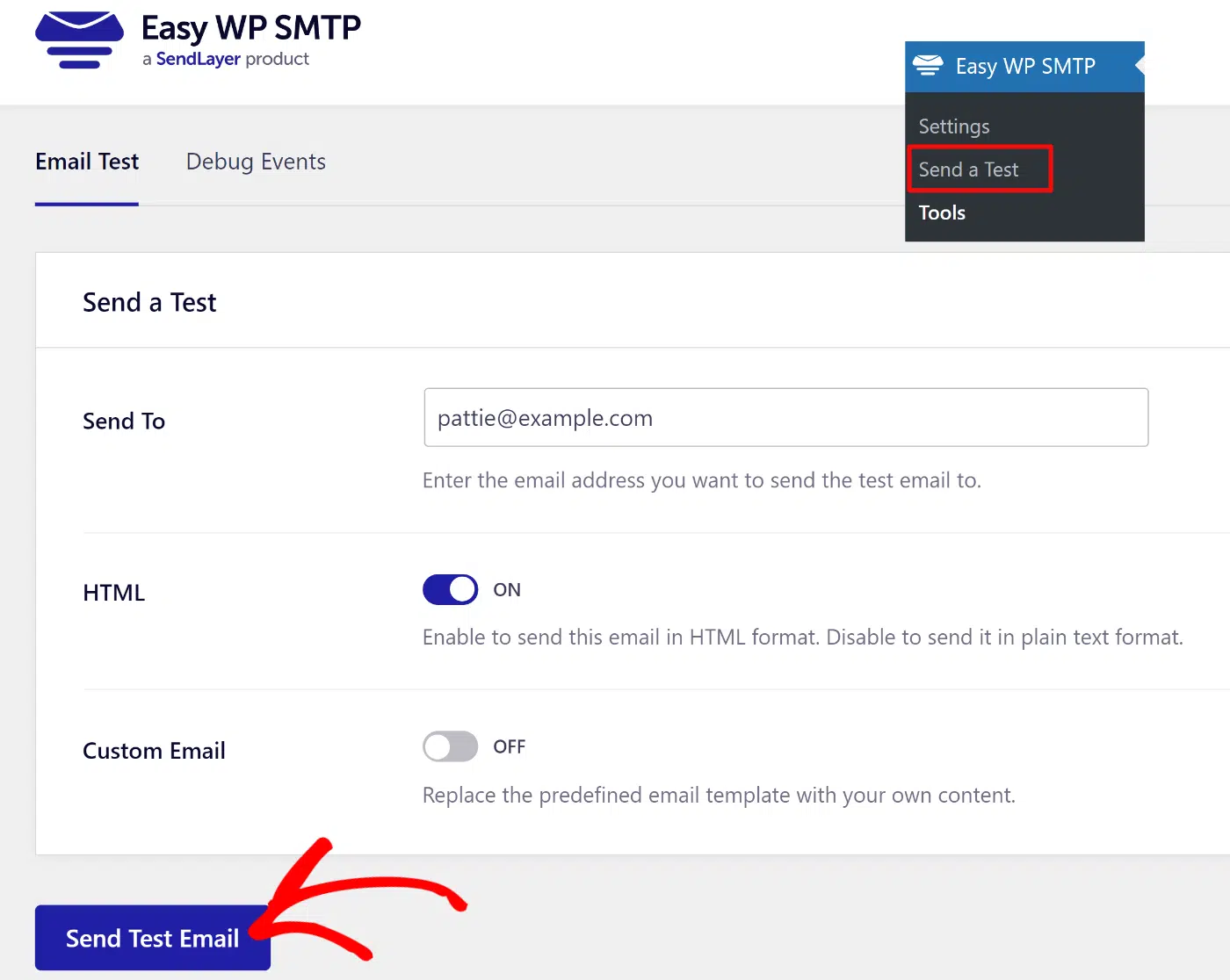
Once it lands in your inbox, your form notifications will too.
Which spam-protection setup should you use?
For most WordPress sites, a two-layer setup is the sweet spot. It’s invisible to visitors and stops nearly all spam.
Here’s how the main methods compare:
| Method | Visitor friction | Stops smart bots? | Cost |
|---|---|---|---|
| Honeypot field | None (invisible) | Some | Free |
| AI filtering (ActiveLayer) | None (server-side) | Yes | Free plan available |
| reCAPTCHA / hCaptcha | High (puzzle or checkbox) | Not reliably | Free |
Here’s a simple way to choose:
- Everyone: enable your form’s honeypot. It’s free and takes one click.
- Most sites: add ActiveLayer for AI, server-side filtering with no CAPTCHA.
- Heavily targeted sites: keep both layers, then add a CAPTCHA only if spam still gets through.
Pair that with SMTP so the real leads that pass the filters actually reach you.
Frequently Asked Questions
These are answers to some of the top questions we see about preventing contact form spam in WordPress.
Can you stop contact form spam without a CAPTCHA?
Yes. A honeypot field plus an AI service like ActiveLayer stops most spam invisibly. Both run in the background, so real visitors never see a puzzle or checkbox. If you’re using a form plugin like WPForms, it has a built-in spam protection feature that studies user behavior.
Why is my WordPress contact form suddenly getting so much spam?
Bots scan the web for forms with no protection. Once yours is found, its address gets shared on bot lists and traffic ramps up. A recent theme or plugin change can also expose a form that was hidden before. Adding a honeypot and AI filtering usually stops the surge quickly.
Will AI spam protection block real leads (false positives)?
It’s rare, and you stay in control. ActiveLayer logs every submission under ActiveLayer » Submissions, so you can review anything it flags. If a real message is caught, mark it as clean. The system learns from that and improves over time.
Which form plugins does ActiveLayer work with?
ActiveLayer works with popular WordPress form plugins, including WPForms, Contact Form 7, Forminator, and Formidable. It also protects WordPress comments. You install the plugin once, and it covers your supported forms without extra setup per form.
Is ActiveLayer free?
ActiveLayer has a free trial plan with 1000 checks. You only add a payment method if you go over the limit, and it won’t charge you without notice first.
Does a honeypot slow down my website?
No. A honeypot is just a hidden form field, so it adds no real load. Your visitors never see it, and legitimate submissions pass straight through untouched.
That’s it! Now you know how to protect your WordPress contact form from spam with AI.
Next, make sure every email your site sends is authenticated and trusted. Read our guide on how to fix WordPress not sending email to close the loop on deliverability.
