


Are you looking to automate workflows and trigger transactional emails in n8n?
To send email in n8n, you’ll need to add the Send Email node, connect your SMTP credentials, and map your fields. Or you can skip SMTP entirely and call an email API with the HTTP Request node. Both paths take a few minutes once your sending domain is ready.
In this guide, I’ll walk through the SMTP node configuration for email sending in n8n. Additionally, you’ll learn about the HTTP Request method, and the deliverability steps that keep your emails landing in inboxes.
Excited? Let’s begin.
- What are the ways to send email in n8n?
- What do you need before sending email in n8n?
- How do you send email with the n8n Send Email (SMTP) node?
- How do you send an HTML email in n8n?
- How to send email via the HTTP Request node in n8n
- How do you add attachments and CC/BCC in n8n?
- How do you improve email deliverability when sending from n8n?
- Why is your n8n Send Email node not working?
- Frequently Asked Questions
What are the ways to send email in n8n?
n8n gives you three main ways to send email. Each one fits a different need. Here’s a quick look before we go deeper.
| Method | Best for | Setup |
|---|---|---|
| Send Email node (SMTP) | Most automated sends, any SMTP provider | Add SMTP credential, map fields |
| Gmail / Outlook nodes (OAuth) | Sending from your own mailbox, replies | Connect account via OAuth |
| HTTP Request node (email API) | API-first providers, full control | Add headers and JSON body |
The Send Email node uses SMTP. It works with any provider, including SendLayer. The Gmail and Outlook nodes use OAuth and send from your personal or workspace mailbox. The HTTP Request node calls an email API directly, so you control every field.
Working in Microsoft’s tools instead? Here’s how to send email in Power Automate with the Outlook or SMTP connector.

What do you need before sending email in n8n?
You need four things before your first send. Get these ready, and the rest is quick.
Prerequisites
- A running n8n instance: n8n Cloud or a self-hosted setup both work.
- A SendLayer account: The free plan sends 200 emails per month.
- A verified sending domain: You add SPF and DKIM DNS records for it.
- SMTP credentials or an API key. You get both from your SendLayer dashboard.
A quick definition of those DNS records. SPF (Sender Policy Framework) lists the servers authorized to send on behalf of your domain. DKIM (DomainKeys Identified Mail) adds a signature that proves your email wasn’t tampered with. Together, they tell inbox providers your mail is legit.
Note: You can’t send from a free address, such as [email protected], through SendLayer. You’ll need to authorize your domain and send from your own verified domain, such as [email protected].
How do you send email with the n8n Send Email (SMTP) node?
To send an email using the Send Email node, create an SMTP credential, add the node, and map your fields. It’s the core path most people use. Here are the steps.
1. Create an SMTP credential. In n8n, click the + icon at the top-left of the page and select New credential. Then search for and select SMTP as the credential type.

2. Enter your SendLayer SMTP settings. Use the values below. You’ll find your SMTP username and password in the SendLayer dashboard.
| Field | Value |
|---|---|
| Host | smtp.sendlayer.net |
| Port | 587 |
| User | Your SendLayer SMTP username |
| Password | Your SendLayer SMTP password |
| SSL/TLS | Off (for port 587) |

To retrieve your SMTP credentials, log in to your SendLayer account and select the Settings sidebar menu. Then select the SMTP Credentials tab.
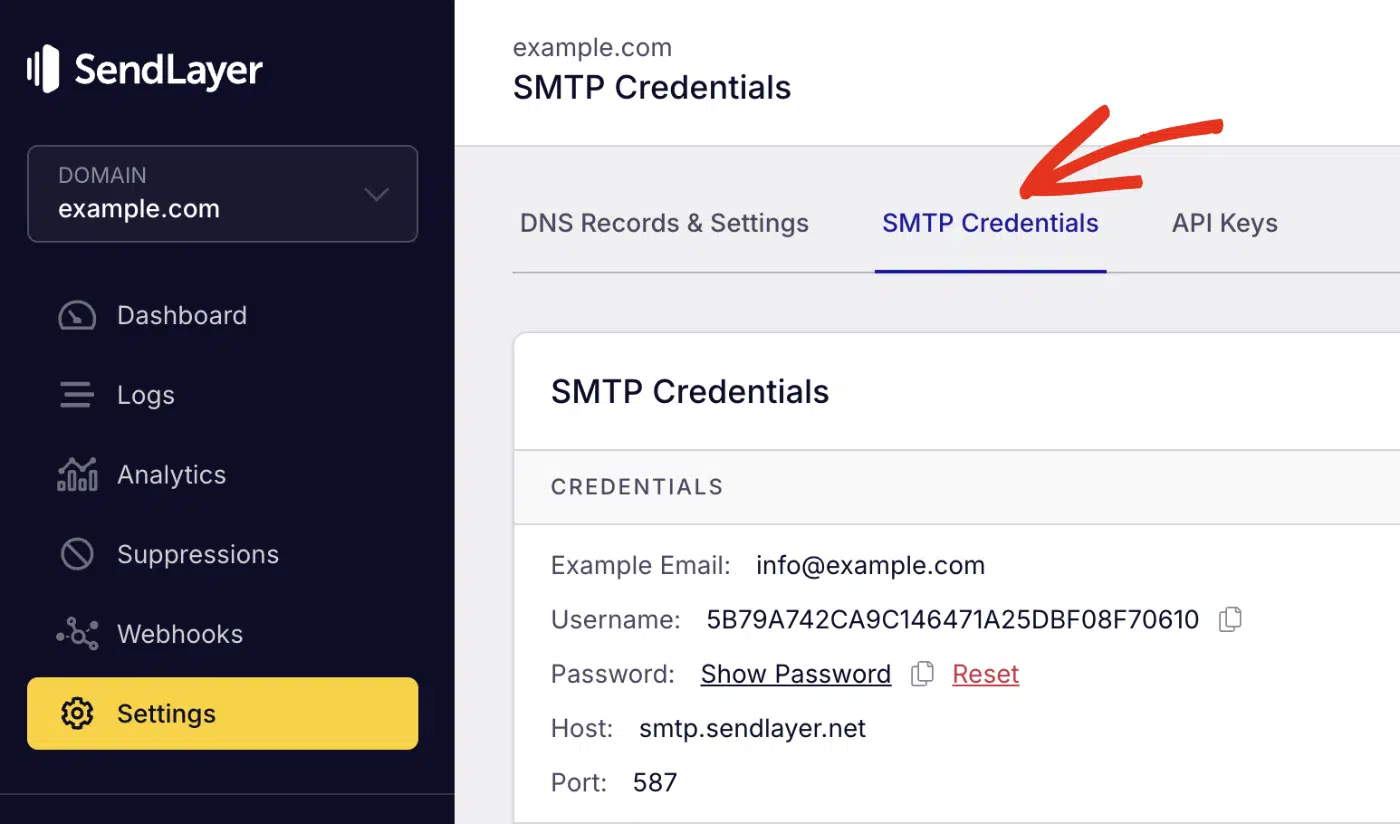
You’ll see the SMTP credentials required to use SendLayer’s SMTP server. The Host and Port number are the same for all users. However, the Username and Password details are unique to your SendLayer account.
3. Save the credential. n8n tests the connection when you save. You should see a green success message.

4. Add the Send Email node. In your workflow, click the + button, then search for “Send Email”. Select your new SMTP credential.

5. Map your fields. Fill in From, To, and Subject. I’ll cover these in the next section.
How do you create SendLayer SMTP credentials in n8n?
You create them as a credential of type SMTP inside n8n. For this, click the + icon and select New credential from the dropdown.

In the overlay that appears, search for and select SMTP, and click Continue.

Then enter the four core values. Host is smtp.sendlayer.net. User and Password are the SMTP credentials from your SendLayer dashboard.
Toggle off the SSL/TLS option, then use port 587.

Once done, click the Save button to add the SMTP connection.

Which SMTP port should you use, 465 or 587?
Use port 587 with STARTTLS for most setups. Use 465 if you want implicit SSL instead. Both are secure, so either works.
Here’s how it maps inside the n8n SMTP credential:
- Port 587: Set SSL off. n8n upgrades the connection with STARTTLS. STARTTLS starts plain, then switches to an encrypted channel.
- Port 465: Set SSL on. The connection is encrypted from the first byte.
Warning: A mismatch here is the most common error. Port 587 with SSL on (or 465 with SSL off) will fail to connect.
How to configure the From, To, and Subject fields
You map these in the Send Email node’s parameters. Each field accepts a static value or a dynamic expression. Here’s what goes where:
- From Email: Your verified sender, like
[email protected]. - To Email: The recipient. Comma-separate for multiple addresses.
- Subject: Your subject line.
- Email Format: Choose Text or HTML.

To pull data from a previous node, use an n8n expression. For example, set the Subject to:
New order from {{ $json.customerName }}
That {{ $json.customerName }} reads the customerName field from the incoming data. n8n swaps in the real value at run time.
How do you send an HTML email in n8n?
To send HTML email, set the Email Format option to HTML in the Send Email node.

Then put your HTML markup in the HTML field. n8n sends it as a formatted email instead of plain text.

You can mix in dynamic data with expressions. Drop them right inside your HTML:
<h1>Thanks for your order, {{ $json.customerName }}!</h1>
<p>Your order total was {{ $json.orderTotal }}.</p>
Pro Tip: Set the Email Format to Both and keep an HTML and a plain-text version in mind. Some clients block HTML. A clean fallback helps your message still read well.
How to send email via the HTTP Request node in n8n
To send email through the API, add an HTTP Request node and point it at the SendLayer endpoint. You set the method to POST, add two headers, and pass a JSON body. That path skips SMTP entirely.
Here’s the setup:
Start by adding the HTTP Request node and then set the Method to POST. Set the URL to:
https://console.sendlayer.com/api/v1/email

Next, you’ll need to configure the email headers. Under Headers, add these two:
Content-Type:application/json

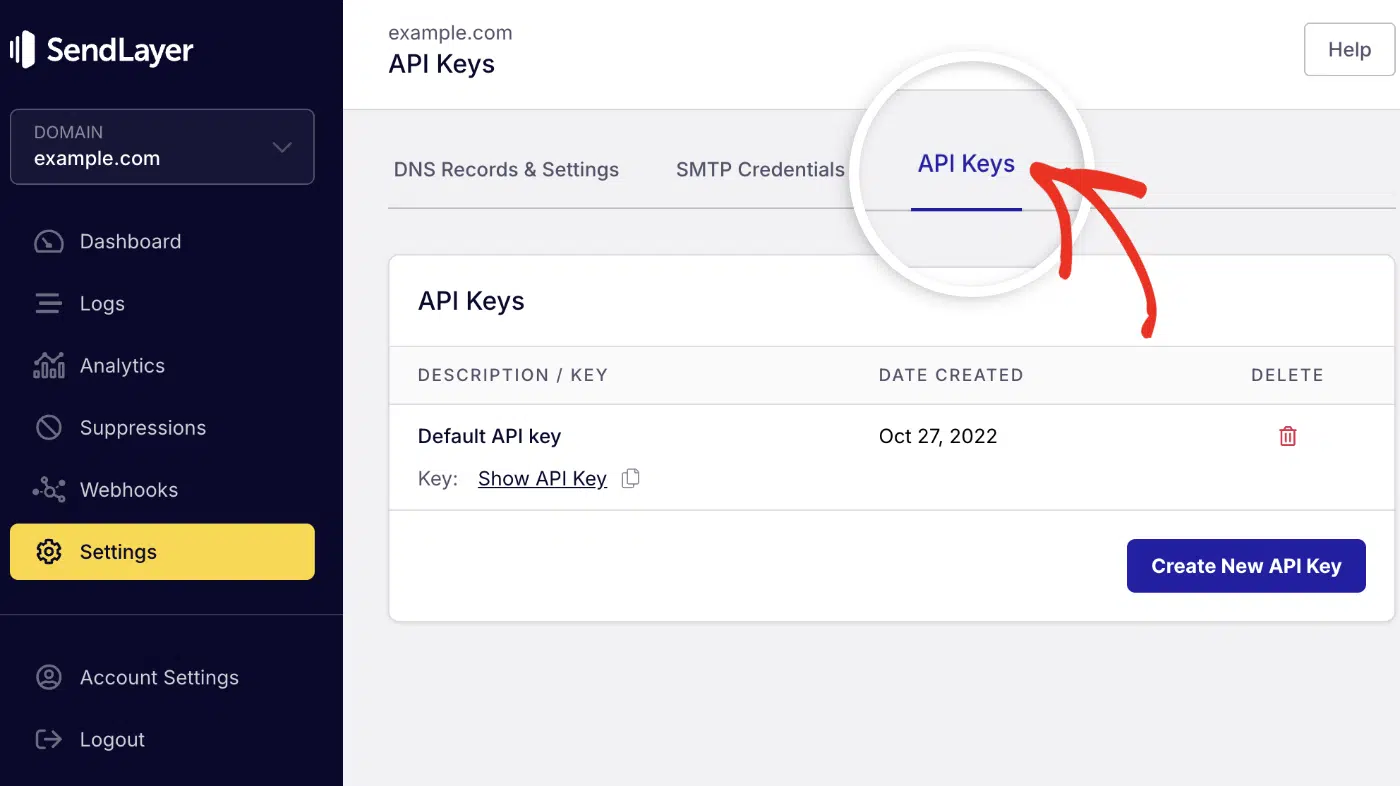
To retrieve your API key, log in to your SendLayer account dashboard. Then navigate to Settings » API Keys.
Now specify the email data as a JSON snippet. To do so, set the Body Content Type to JSON.

Then choose Using JSON from the Specify Body dropdown and paste the snippet below. Add the JSON body. Set the body type to JSON, then paste this. Swap in your details and expressions:
{
  "From": { "name": "Your Brand", "email": "[email protected]" },
  "To": [{ "name": "{{ $json.customerName }}", "email": "{{ $json.customerEmail }}" }],
  "Subject": "New order from {{ $json.customerName }}",
  "ContentType": "HTML",
  "HTMLContent": "<h1>Thanks for your order!</h1>"
}
The keys are capitalized, so match them exactly. Use PlainContent instead of HTMLContent for plain text. Be sure to set ContentType to Text in that case.
Note: Keep in mind that SendLayer has limits on the number of recipients to include per email request. You can add up to 10 recipients, 10 CC recipients, and 5 BCC recipients per request. To learn more, see our rate limit guide.
How do you add attachments and CC/BCC in n8n?
You add these differently depending on your method. Both the Send Email node and the API support them. Here’s how each works.
With the Send Email node, click the Add option button and select the option you’d like to include:

- Attachments: Point the Attachments field to a binary property. That binary comes from an earlier node, like a file download or a Read Binary File node.
- CC and BCC: Enter addresses in the CC and BCC fields. Comma-separate for multiple recipients.
With the SendLayer API (HTTP Request node), use arrays in your JSON body:
{
  "CC": [{ "name": "Manager", "email": "[email protected]" }],
  "BCC": [{ "name": "Records", "email": "[email protected]" }],
  "Attachments": [
    { "Filename": "invoice.pdf", "Content": "BASE64_STRING", "Type": "application/pdf" }
  ]
}
The Content value is your file encoded as base64. Type is the file’s MIME type. Add these alongside the From, To, and Subject keys.
How do you improve email deliverability when sending from n8n?
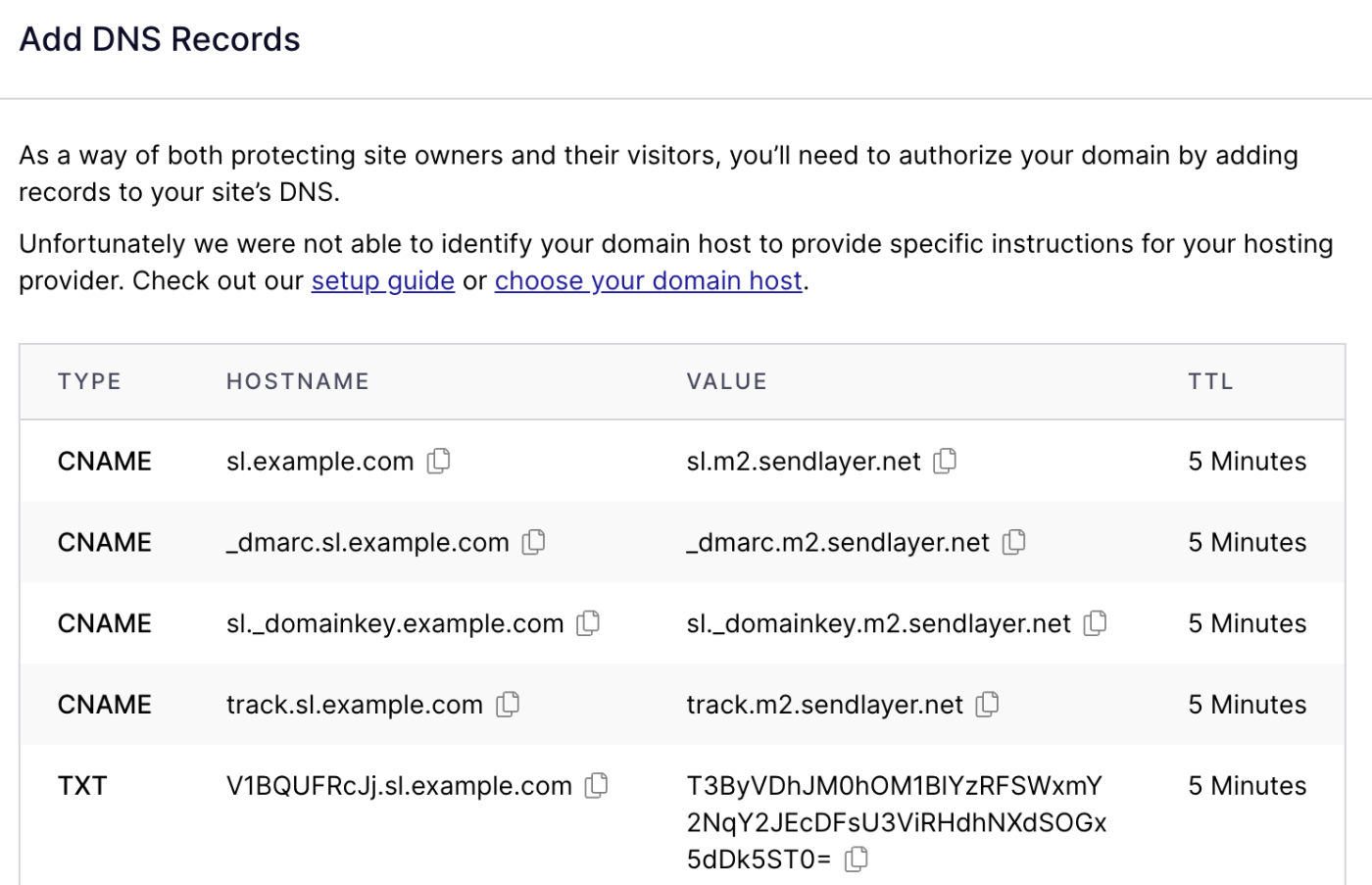
The biggest deliverability win is authenticating your sending domain. Inbox providers trust authenticated mail. Without it, your automated emails often land in spam.
Set up these three records in SendLayer:
- SPF (Sender Policy Framework): Lists servers allowed to send for your domain.
- DKIM (DomainKeys Identified Mail): Adds a signature that verifies your mail wasn’t changed.
- DMARC (Domain-based Message Authentication): Tells inboxes what to do if a check fails.
The good news? SendLayer automatically adds these records when you authorize your domain.
Next, use a dedicated sending domain or subdomain. Something like mail.yourdomain.com keeps your marketing and transactional mail separate. It protects your main domain’s reputation.
Here’s the bigger reason to avoid personal Gmail SMTP for automation. Gmail rate-limits sends and flags bulk or automated mail fast. A transactional email service like SendLayer is built for exactly this. It handles volume, signs your email messages, and tracks delivery.
Important: Authenticating your domain isn’t optional for automation. Skip it and many providers reject your mail outright.
Why is your n8n Send Email node not working?
Most failures trace back to three causes. Here’s how to spot and fix each one.
1. Authentication or login failure: Your SMTP user or password is wrong. Recheck both against your SendLayer dashboard. If you’re using a Gmail account instead, you need an app password with 2-factor authentication turned on. Your normal password won’t work there.
2. Connection blocked: Self-hosted on a VPS? Many providers block outbound ports 25, 465, and 587 by default. Test the connection from your server first. If it’s blocked, ask your host to open the port, or switch to the API path over port 443.
3. SSL/TLS mismatch. Your SSL toggle doesn’t match your port. Use port 587 with SSL off (STARTTLS). Use port 465 with SSL on. A mismatch causes timeouts or handshake errors.
Pro Tip: Stuck on a self-hosted port block? The HTTP Request node uses standard HTTPS on port 443. It sidesteps SMTP port blocks entirely.
Here’s a minimal, illustrative workflow you can import to test a send. It uses a Manual Trigger plus the Send Email node:
{
  "name": "Send via SendLayer",
  "nodes": [
    {
      "parameters": {},
      "name": "Manual Trigger",
      "type": "n8n-nodes-base.manualTrigger",
      "typeVersion": 1,
      "position": [240, 300]
    },
    {
      "parameters": {
        "fromEmail": "[email protected]",
        "toEmail": "[email protected]",
        "subject": "Test from n8n + SendLayer",
        "emailFormat": "text",
        "text": "It works!"
      },
      "name": "Send Email",
      "type": "n8n-nodes-base.emailSend",
      "typeVersion": 2,
      "position": [460, 300],
      "credentials": {
        "smtp": { "name": "SendLayer SMTP" }
      }
    }
  ],
  "connections": {
    "Manual Trigger": {
      "main": [[{ "node": "Send Email", "type": "main", "index": 0 }]]
    }
  }
}
Note: The export is illustrative. Node type versions vary by n8n release. Add your own SMTP credential after importing.
Frequently Asked Questions
These are answers to some of the top questions users ask about automating email sending in n8n.
What SMTP port should I use in n8n, 465 or 587?
Use port 587 with STARTTLS for most setups. In the n8n SMTP credential, set SSL off for 587. Pick port 465 if you want implicit SSL, and set SSL to on for that port. Both are secure.
Should I use the Send Email node or the Gmail node?
Use the Send Email node for most automated sends through a provider like SendLayer. Choose the Gmail node when you need to reply inside an existing thread. The SMTP node can’t set the headers needed for threading.
Why is my n8n Send Email node not sending?
Check three things first. Confirm your SMTP user and password are correct. Make sure your port and SSL toggle match (587 with SSL off, 465 with SSL on). On a self-hosted VPS, check that outbound SMTP ports aren’t blocked.
Can I send email in n8n via an API instead of SMTP?
Yes. Use the HTTP Request node with a POST to https://console.sendlayer.com/api/v1/email. Add an Authorization: Bearer header and a JSON body. The API call runs over HTTPS, so it avoids SMTP port blocks.
That’s it! Now you know how to send email in n8n.
Sending email in n8n comes down to picking the SMTP node or the HTTP Request API path, then authenticating your domain.
Next, would you like to send email from your AI coding assistant? Check out guides on sending emails in Claude Code, Cursor, and OpenAI’s Codex to learn how.
