


What Is DMARC?
DMARC (Domain-based Message Authentication, Reporting, and Conformance) is an email authentication protocol.
It is used to verify the sender’s identity and prevent such issues as spam and email spoofing. DMARC implements 3 main policies:
- None
- Quarantine
- Reject
The DMARC protocol depends upon the SPF and DKIM protocols, and at least one of these must be present for it to work.
DMARC records are stored in the DNS (Domain Name System) as TXT records and do not point to an address.
What Do DMARC Records Do?
The DMARC record specifies what to do if an authentication failure occurs for emails sent from your domain. For example, the information in the DMARC record helps the recipient server decide whether to mark a suspicious email as spam or even reject it.
For any mail sent from your domain, the DMARC record also plays a role in verifying the from email address. Overall, the primary role of the DMARC protocol is to protect your domain from unauthorized use.
How Are DMARC Records Used in SendLayer?
When you add a domain to your SendLayer account, a corresponding DMARC record is generated automatically. It goes on your SendLayer sending subdomain rather than on your root domain, and that distinction decides whether your mail has a DMARC policy at all.
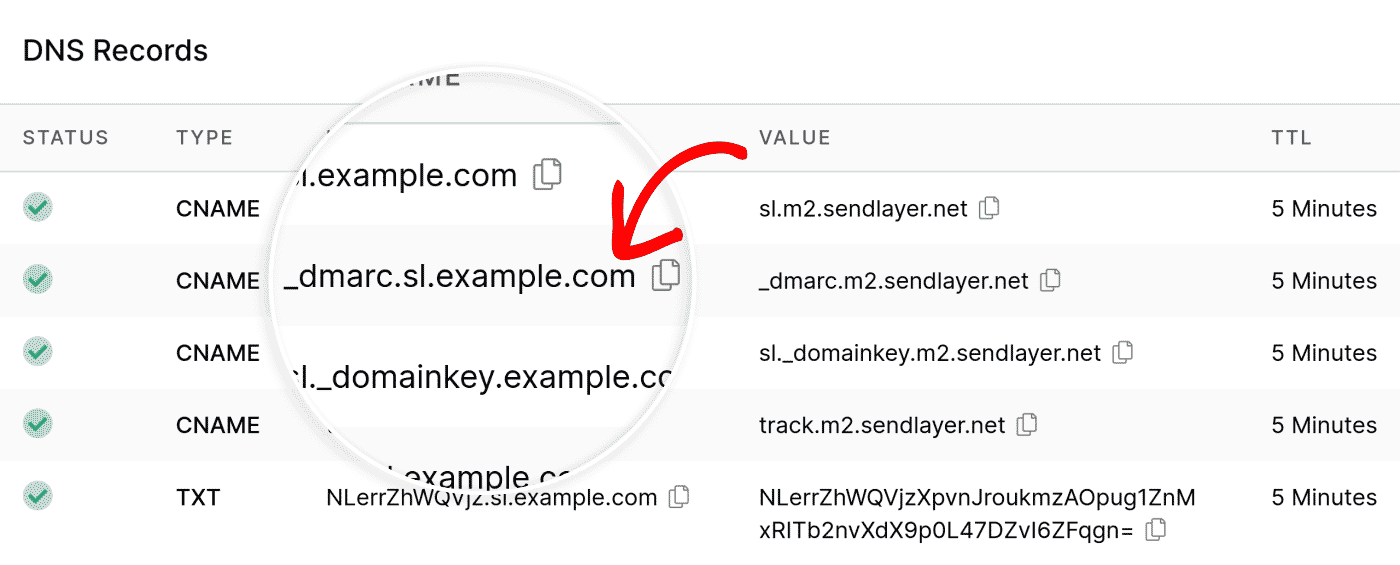
SendLayer sends your mail from a dedicated subdomain of your domain, sl.yourdomain.com.
The DMARC record SendLayer creates belongs to that subdomain, at _dmarc.sl.yourdomain.com. Your root domain, yourdomain.com, is untouched.
That record arrives as a CNAME pointing at SendLayer’s own DMARC record rather than as a TXT record you own. The advantage is that SendLayer can keep the policy current for you, the same way the rest of your SendLayer DNS records work. Its policy quarantines mail that fails authentication on the sending subdomain, and its report addresses point back to SendLayer, so the reports it generates go to the team maintaining the sending infrastructure.
What it does not do is give your root domain a DMARC policy. The reason is in how a receiving server performs the check. The server reads the domain in your visible From address and looks for a DMARC record on that exact name. When you send through SendLayer your From address is on your root domain, something like [email protected], so the server looks up _dmarc.yourdomain.com. If it finds nothing there, your message has no DMARC policy at all, and the record on sl.yourdomain.com is never consulted. A subdomain record only applies to mail whose From domain is that subdomain.
So the two records answer two different questions. SendLayer’s record covers the subdomain it sends from. Yours covers the domain your recipients see. You need both, and only the first one is created for you.
How to Add a DMARC Record to Your Root Domain
This is the record that gives your visible sending domain a DMARC policy. It takes one DNS entry and about five minutes.
Do this after your SendLayer domain is verified, not before. DMARC works by checking that SPF or DKIM passed and matched your From domain, so publishing a policy before authentication is in place tells receiving servers to act on failures you have not fixed yet. If your SendLayer domain shows as verified, you are ready.
Step 1: Start with a monitoring policy
Add a TXT record to your root domain with these values:
| Field | Value |
|---|---|
| Type | TXT |
| Host / Name | _dmarc |
| Value | v=DMARC1; p=none; rua=mailto:[email protected] |
| TTL | Leave the default |
Replace [email protected] with an address you actually read. Reports arrive as XML attachments, so a shared inbox or an address dedicated to them is kinder than your personal one.
Two things about the Host field catch people out. Some DNS hosts want just _dmarc and append your domain themselves, while others want the full _dmarc.yourdomain.com. If you are unsure, look at how your existing records are written and match them. And the leading underscore is required, so dmarc without it will not work.
Here is what each part of the value does:
v=DMARC1identifies the record. It always comes first and never changes.p=noneis your policy. It asks receiving servers to treat failing mail exactly as they would have anyway, and to send you reports about it. Nothing about your delivery changes.rua=mailto:is where those reports go. Without it you get a policy but no visibility, which is the wrong way round for a first record.
Step 2: Confirm it published
DNS changes usually appear within an hour and can take up to 48. Once it has propagated, check it with any DMARC lookup tool.
You should see the value you entered. If you see two DMARC records, remove one: a domain with more than one record has no valid policy at all, and receiving servers will skip the check entirely.
Step 3: Read the reports, then tighten
Reports start arriving within a day or two, usually one per receiving provider per day. What you are looking for is any legitimate sender of yours that is failing, which is commonly a service nobody remembered was sending on the domain: a helpdesk, an invoicing tool, a form plugin, an old marketing platform.
Once several weeks of reports show only your genuine senders passing, move the policy on:
p=quarantineasks receiving servers to file failing mail as spam.p=rejectasks them to refuse it outright. This is where the protection actually lives, and it is the level Gmail and Yahoo’s bulk sender requirements are built around.
Do not skip to p=reject on day one. An enforcing policy on a domain with an
authentication problem nobody has spotted yet will have your own invoices refused by your customers’ mail servers.
Keep alignment relaxed
DMARC has an alignment setting that controls how closely the authenticated domain has to match your From domain. The default is relaxed, and relaxed is what you want here.
SendLayer authenticates your mail on the sl.yourdomain.com subdomain. Under relaxed alignment that counts as a match for yourdomain.com and your mail passes. If you add adkim=s or aspf=s to force strict alignment, the subdomain stops counting as a match and SendLayer mail starts failing your own policy. Unless you have a specific reason and know what depends on it, leave both out of the record entirely.
Adding your record does not affect SendLayer’s
_dmarc.yourdomain.com and _dmarc.sl.yourdomain.com are two different names in DNS. Adding yours does not overwrite, conflict with or disable the SendLayer one, and you do not need to remove anything first.
If your root domain already has a DMARC record, edit that record rather than adding a second one. One per domain.
That’s it! Now you know how DMARC records work.
If you’d like to learn how to set up your domain records for SendLayer, check out the following articles: