


If you’re a developer using Claude Code, you’ve probably wished for a faster way to send emails without leaving your AI workspace.
Whether you’re building automation workflows, sending test emails, or notifying your team about script results, manually switching between your IDE and email client breaks your focus.
In this tutorial, I’ll show you how to automate email sending directly from Claude Code using SendLayer’s MCP server.
- What Is MCP and Why Use It?
- How to Automate Email Sending with Claude Code
- Step 1: Create Your SendLayer Account
- Step 2: Get Your SendLayer API Key
- Step 3: Install SendLayer MCP in Claude Code
- Step 4: Send Your First Email
- Sending Different Email Types
- Real-World Use Cases: Automating Transactional Emails
- Troubleshooting Common Issues
- Frequently Asked Questions
What Is MCP and Why Use It?
MCP (Model Context Protocol) is a standard that lets AI tools like Claude Code interact with external services. Think of it as a bridge that connects your AI assistant to real-world tools such as email providers, databases, and APIs.
SendLayer’s MCP server lets you send transactional emails, manage webhooks, and track email events directly from Claude Code with simple prompts.
How to Automate Email Sending with Claude Code
Prerequisites
Before getting started, you’ll need to ensure:
- You have an active Claude Pro account or higher.
- You have Claude Code installed on your machine. See Anthropic’s guide to get started.
- You’re comfortable with basic command line operations
You’ll also need a SendLayer account to connect with the MCP server. SendLayer is a transactional email service that offers reliable email delivery with excellent domain reputation protection.
The best part? SendLayer offers a free trial that lets you send up to 200 emails. Paid plans start at just $5 per month, making it affordable whether you’re testing during development or scaling to thousands of emails.
Step 1: Create Your SendLayer Account
To begin creating a new SendLayer account, head over to the pricing page and select your preferred plan by clicking on the Get Started button.
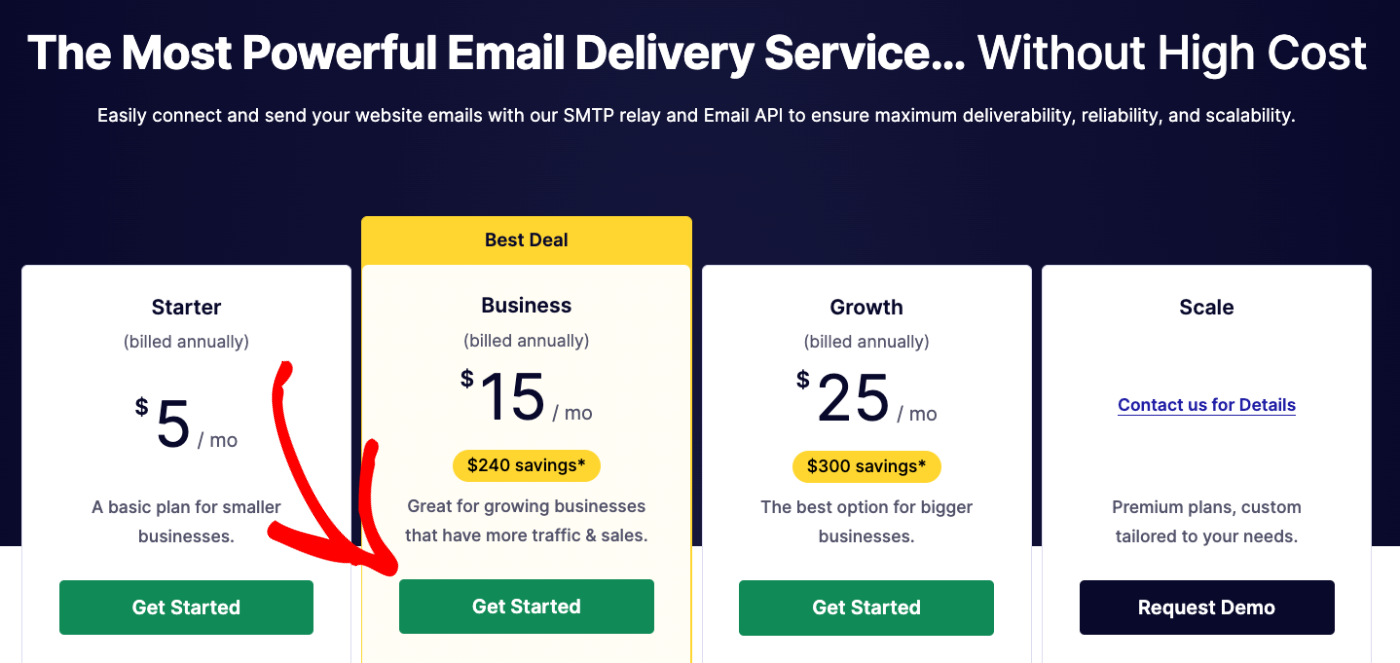
If you’d prefer to start with a free trial, click the Try our SendLayer free trial (send up to 200 emails) link at the bottom of the pricing table.

After choosing a plan, you’ll be redirected to the checkout page. Here, you’ll need to provide your name and create a unique password.
Authorize Your Sending Domain
Once you’ve created your account, you’ll need to authorize your first domain. To do so, start by clicking the Add Domain button.

Next, enter your domain in the text field and click the Add Domain button.

Once you’ve added your domain, SendLayer automatically detects your domain host and generates 5 different DNS records unique to your domain.
If SendLayer doesn’t detect your domain host, you’ll see the general DNS configuration for your domain.
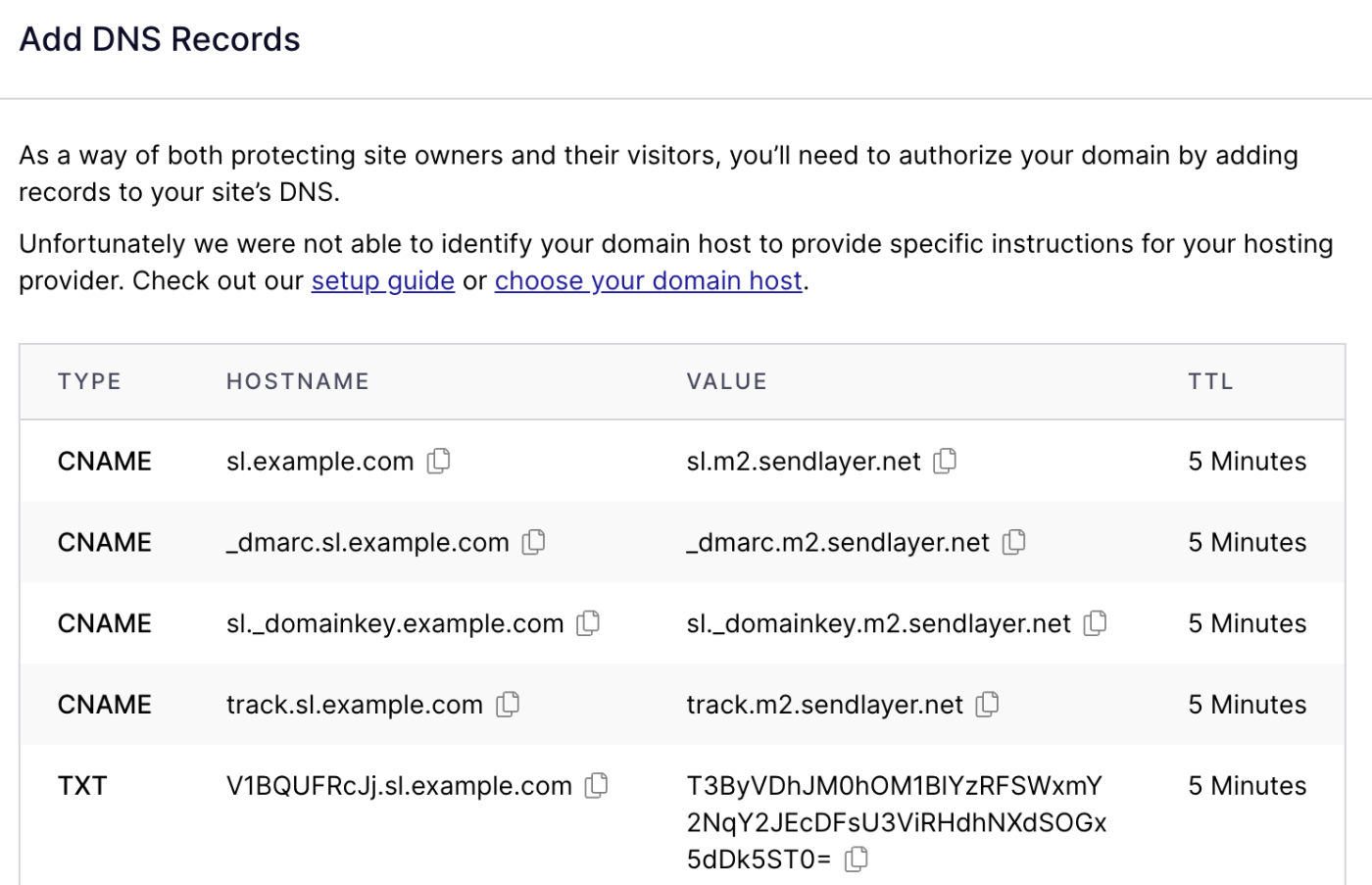
You can click the choose your domain host link to select your domain host from the available options.
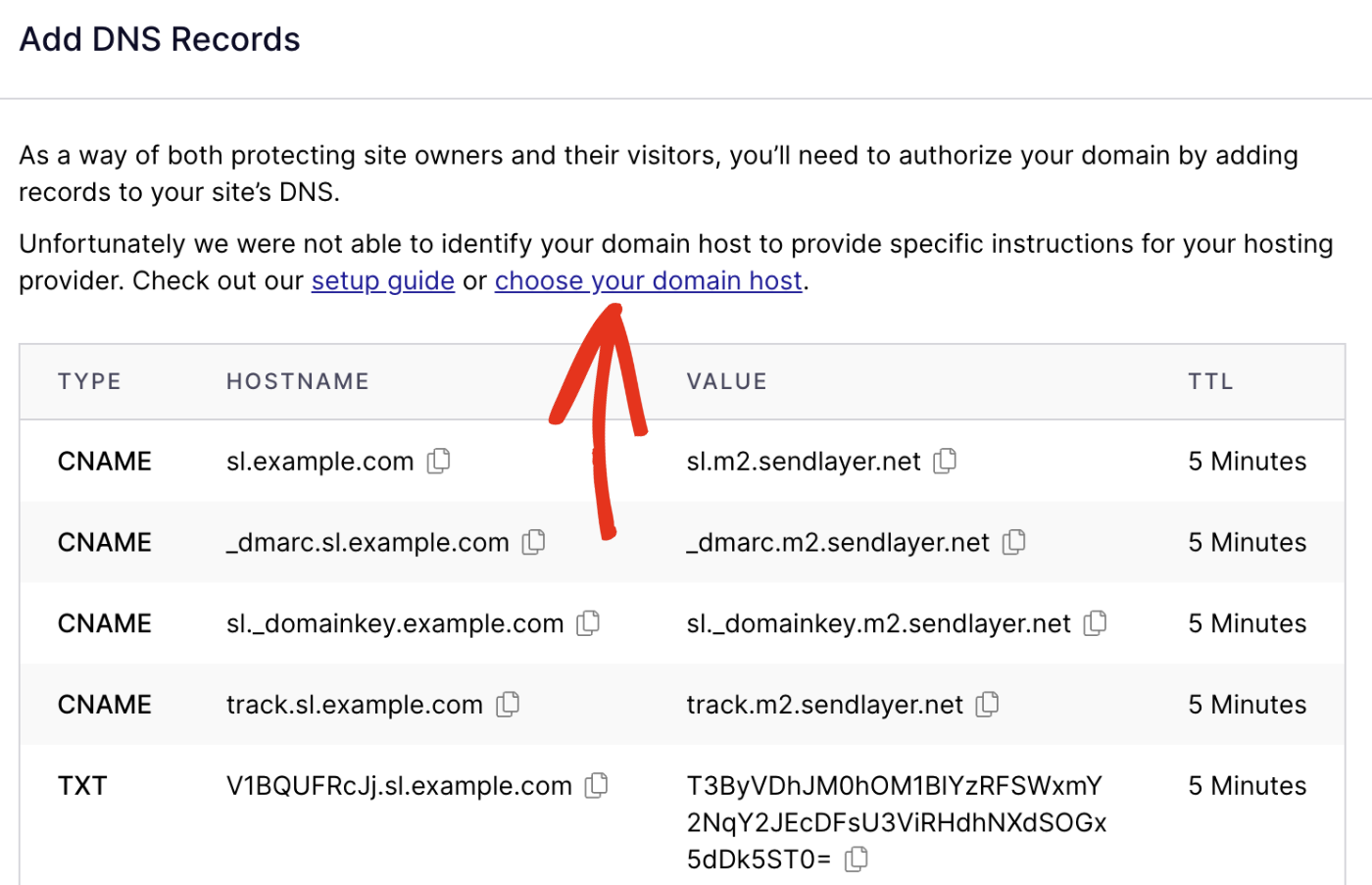
You’ll need to add these DNS records to your domain host.
Step 2: Get Your SendLayer API Key
To authenticate the MCP server connection, you’ll need your SendLayer API key.
To do this, log in to your SendLayer account and navigate to Settings in the sidebar menu. Then select the API Keys tab.
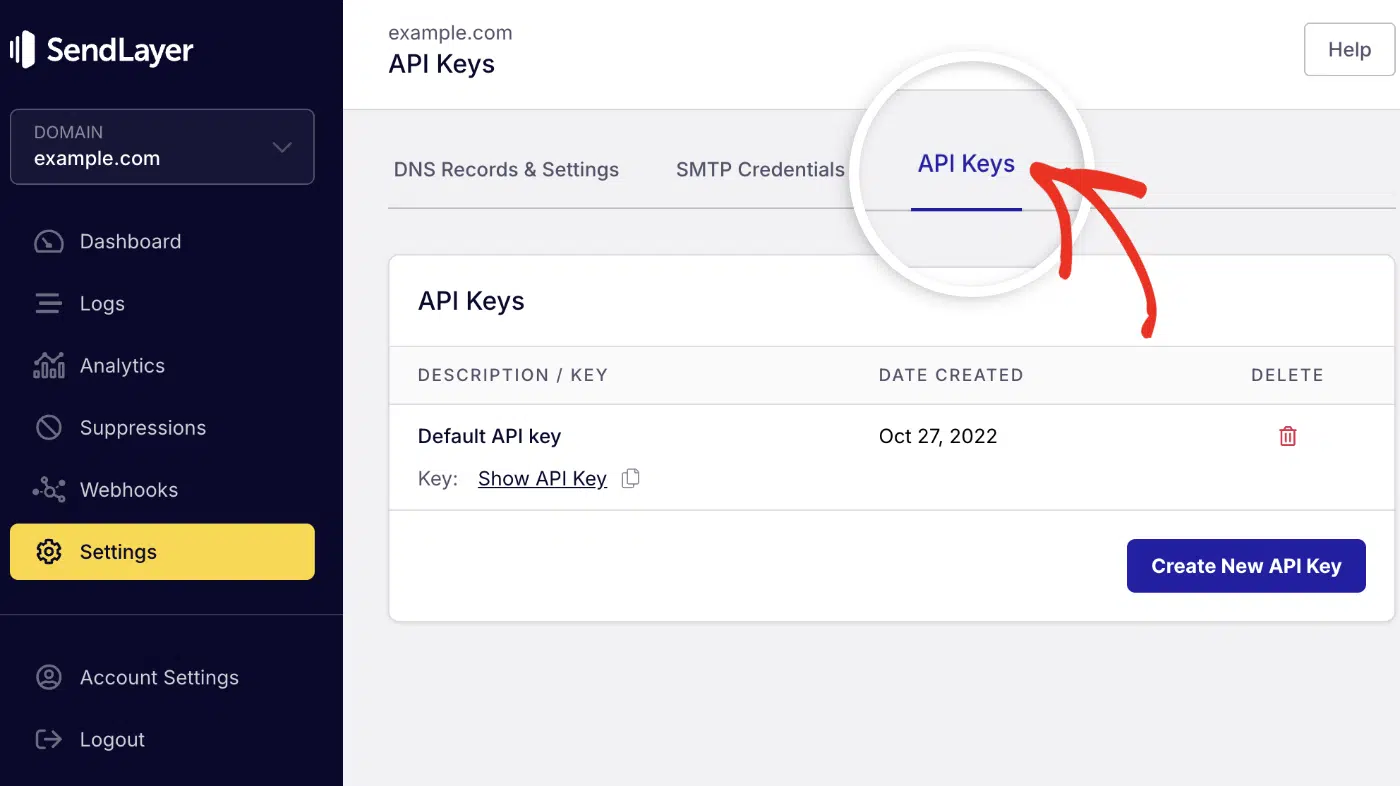
You’ll see your API key displayed. Click the copy icon to copy it to your clipboard. Keep this handy as you’ll need it in the next step.

If you don’t have an active API key, click the Create New API Key button to generate one.
Step 3: Install SendLayer MCP in Claude Code
SendLayer offers a hosted MCP server, which means you don’t need to install anything locally. The setup takes less than 2 minutes.
Open your terminal and run the following command:
claude mcp add --scope user --transport http sendlayer-mcp https://mcp.sendlayer.com --header "Authorization: Bearer YOUR_SENDLAYER_API_KEY"
Make sure to replace YOUR_SENDLAYER_API_KEY with your actual SendLayer API key that you copied in the previous step.
After running this command, Claude Code will configure the MCP server and establish the connection to SendLayer.
Verifying the Connection
To verify that the MCP server is properly connected, you can ask Claude Code to list available tools:
List all available MCP tools
You should see SendLayer tools in the response, including:
send-emailget-eventslist-webhookscreate-webhookdelete-webhook

Step 4: Send Your First Email
Now that SendLayer MCP is configured, let’s send your first email using Claude Code.
The beauty of MCP is that you don’t need to write code. Simply open Claude Code and use natural language to describe what you want.
Here’s an example prompt:
Send an email to [email protected] with the subject "Welcome to SendLayer" and message "Thanks for signing up! We're excited to have you."
When you enter this prompt, Claude Code will:
- Interpret your request
- Connect to SendLayer’s MCP server
- Call the
send-emailtool with the appropriate parameters - Display a confirmation when the email is sent
Behind the scenes, Claude generates a structured request like this:
{
   "from": "[email protected]",
   "to": "[email protected]",
   "subject": "Welcome to SendLayer",
   "text": "Thanks for signing up! We're excited to have you."
}
You should receive the test email in your inbox shortly after.

Sending Different Email Types
SendLayer MCP supports various email types beyond plain text. Here’s how to send different formats:
HTML Emails
To send an HTML email with formatting, links, and styling, simply specify that in your prompt:
Send an HTML email to [email protected] with subject "Order Confirmation" and message that includes a bolded heading "Thank you for your order!" and a blue button that says "View Order" linking to https://example.com/orders
Claude Code will generate the appropriate HTML structure and send it through SendLayer’s MCP server.
Emails With Multiple Recipients
You can send emails to multiple recipients by listing them in your prompt:
Send an email to [email protected] and [email protected] with subject "Team Meeting" and message "Our weekly standup is scheduled for tomorrow at 10 AM."
Claude Code automatically handles the recipient list and ensures each person receives the email.
Emails With Attachments
You can also attach files to your emails through natural language commands:
Send an email to [email protected] with subject "Q4 Report" and message "Please find the attached report" with attachment @report.pdf
You can directly reference the file you want to attach using the '@' command. The MCP encodes the file before sending the email.
Real-World Use Cases: Automating Transactional Emails
Now that you know how to send emails with Claude Code, let’s explore practical scenarios where this integration becomes invaluable for developers and businesses.
Automated Deployment Notifications
When deploying applications, keeping your team informed is crucial. With Claude Code and SendLayer MCP, you can set up instant deployment notifications without writing complex scripts.

Example prompt:
Send an email to [email protected] with subject "Production Deployment Successful" and an HTML message that includes: deployment time (current time), application version 2.4.1, environment: Production, status: Success with a green checkmark, and deployed by: John Smith
Claude Code automatically formats a professional HTML email with all the deployment details, saving you from writing deployment notification code manually.
Automated Error Monitoring Alerts
Critical errors need immediate attention. Instead of configuring complex monitoring tools, you can use Claude Code to send error notifications directly from your logs.

Example prompt:
Read the error log file at /var/logs/app-errors.log, identify any critical errors from the last hour, and send an urgent email to [email protected] with subject "CRITICAL: Application Error Detected" including the error details, timestamp, and affected component
This allows you to create intelligent alerting systems that parse logs and notify the right people automatically.
eCommerce Order Confirmations
eCommerce businesses need to send order confirmations instantly. Claude Code can generate detailed, branded order confirmation emails based on order data.
Example prompt:
Send an order confirmation email to [email protected] with subject "Order #12345 Confirmed" that includes: order number 12345, order date (today), 2 items ordered (Blue T-Shirt - $29.99, Running Shoes - $89.99), subtotal $119.98, shipping $9.99, total $129.97, estimated delivery in 3-5 business days, and a "Track Order" button linking to https://store.example.com/track/12345
Claude Code interprets your natural-language instructions and creates a properly formatted HTML email with all order details clearly organized.
Automated Daily/Weekly Reports
Sending regular reports to stakeholders becomes effortless with Claude Code. You can even combine data analysis with email sending in one conversation.

Example prompt:
Analyze the sales data in /data/weekly-sales.csv, calculate total revenue, number of orders, and average order value. Then send a professional HTML email to [email protected] with subject "Weekly Sales Report - [Current Week]" including these metrics in a formatted table, a brief summary paragraph, and attach the CSV file. CC [email protected] to the email
This eliminates the need for separate reporting tools and manual email composition.
Pro Tip: You can combine multiple Claude Code capabilities in a single conversation. For example, ask Claude to read a database export, filter for active subscriptions expiring in 7 days, and automatically send renewal reminder emails to all those users.
Troubleshooting Common Issues
Here are solutions to common problems you might encounter:
Error: Invalid API Key
The ‘invalid API key’ issue indicates that the API key used to connect the MCP server is incorrect or improperly formatted.
To resolve this issue, double-check your API key in the SendLayer dashboard. Ensure there are no extra spaces or characters when copying. After updating your API key, re-run the claude mcp add command with the correct key
Emails Going to Spam
This error often occurs if your domain is not properly authenticated. SendLayer provides 5 DNS records that improve your domain reputation and verify ownership. If any of the DNS records is missing, it might lead to emails going to spam.
To resolve this error, verify that all DNS records are properly added in your domain host. You can also add custom rules to Claude Code with spam trigger words to avoid when drafting an email.
Finally, if your domain is relatively new, I recommend warming it up gradually to build your email reputation.
FAQs – Automate Email Sending With Claude Code
These are answers to some of the top questions we see about sending emails from Claude Code via MCP.
Is SendLayer MCP free to use?
The MCP server itself is free to use. However, you need an active SendLayer account to authenticate the MCP server connection.
Can I use SendLayer MCP with other AI tools?
Yes! SendLayer’s MCP server works with multiple AI tools, including Cursor, Windsurf, and Gemini-CLI. The setup process is similar across all platforms. See our developer docs for more details on setting up the MCP server.
Is it safe to store my API key in the MCP configuration?
The API key is stored in a local configuration file on your machine, not in Claude Code’s cloud. However, you should never commit this configuration file to version control. Always use environment variables or secure secret management for production applications.
That’s it! You now know how to automate email sending with Claude Code using SendLayer’s MCP server.
Next, would you like to learn how to send emails programmatically using code? Check out our tutorial on how to send emails with Python for a deeper dive into SMTP and API integration.